Fix common problems
IPTV troubleshooting: fix buffering and freezing
IPTV troubleshooting usually starts at home: most buffering, freezing and login errors come from the connection, the device or the app. Work through these checks in order before contacting us.
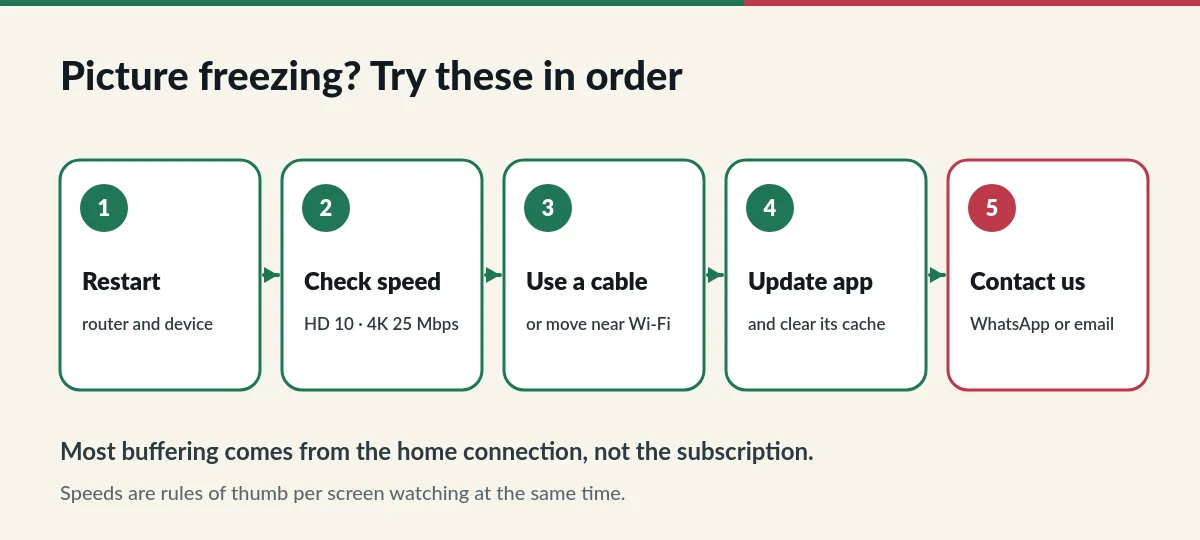
IPTV troubleshooting for buffering and freezing
- Restart your router, then your TV or streaming device. It clears most temporary problems.
- Check your speed on the device itself, not on your phone.
- Use a cable or move the device closer to the Wi-Fi router. Thick walls weaken Wi-Fi a lot.
- Update the app and clear its cache in the device settings.
- Pause big downloads and video calls on other devices while you watch.
- Contact us if the problem continues; we will check your account.
Check your internet speed
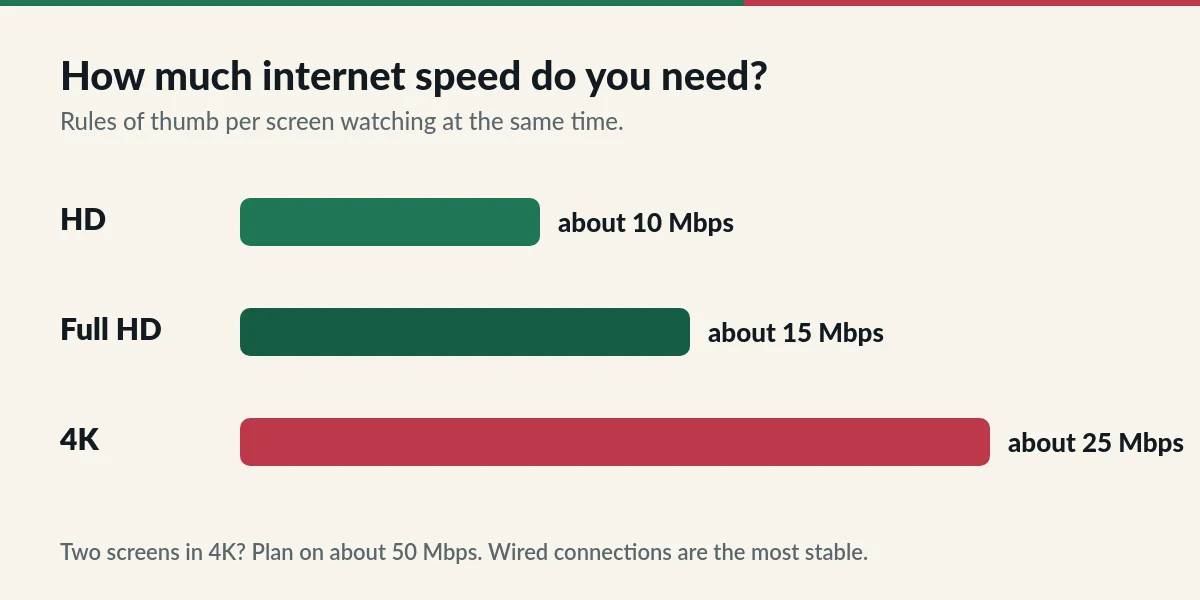
Run a speed test on the device you watch on. As a rule of thumb, allow about 10 Mbps per screen for HD, 15 Mbps for Full HD and 25 Mbps for 4K. If two screens watch 4K at once, plan on about 50 Mbps. If your result is close to these numbers, choose HD instead of 4K in the app.
Login errors
- Check capital letters, spaces and similar-looking characters (O and 0, l and I).
- Make sure your plan is still active; renew if it has ended.
- If you use more screens than your plan allows, streams stop. Close the app on a device you are not using.
A channel does not play
If one channel fails but others work, the problem is usually with that channel at that moment. Try again later or pick an alternative. If many channels fail, restart the app and router. Channel line-ups also change over time; tell us if a channel you rely on has disappeared.
IPTV lag, DNS and VPN questions
Some customers improve stability by changing the DNS servers on their router or device to a well-known public DNS. You do not need a VPN to use IPTV.sg. If you already use one, try switching it off when you see buffering, because a VPN adds an extra step between you and the server.

App crashes, sound and subtitles
- The app closes by itself: update it, clear its cache, and restart the device. If it continues, reinstall the app.
- No sound: check the TV volume and audio output, then try another channel. Some channels offer several audio tracks you can switch in the app.
- Subtitles missing: subtitle availability depends on the film or channel. Look for the subtitle or CC option in the player menu.
- Picture too dark or washed out: switch off extra picture modes on the TV, or choose HD instead of 4K if your TV does not support HDR.
Questions about IPTV troubleshooting
Why does it buffer only in the evening?
Evenings are peak hours for home internet use. Pause downloads on other devices, use a cable for the TV and choose HD if 4K stutters.
Why does it work on my phone but not on my TV?
The TV may be far from the router or use an older Wi-Fi standard. Try a network cable or a streaming stick closer to the router.
When to contact us
Contact us after trying the steps above, or straight away if you see an error message you do not understand. Send your username (never your password), your device and app name, and a photo of the screen. You can reach us on WhatsApp or at contact@iptv.sg. Setup steps are in the IPTV setup guide.
Still buffering?
Send us your device, app and a photo of the screen. We will check your account with you.