Step-by-step help
IPTV setup guide: from login to first channel
This IPTV setup guide shows how to install a player app and sign in with the login we send you, on Fire TV Stick and Android TV, Smart TVs, iPhone and iPad, Android phones and computers. Most people are watching within ten minutes.
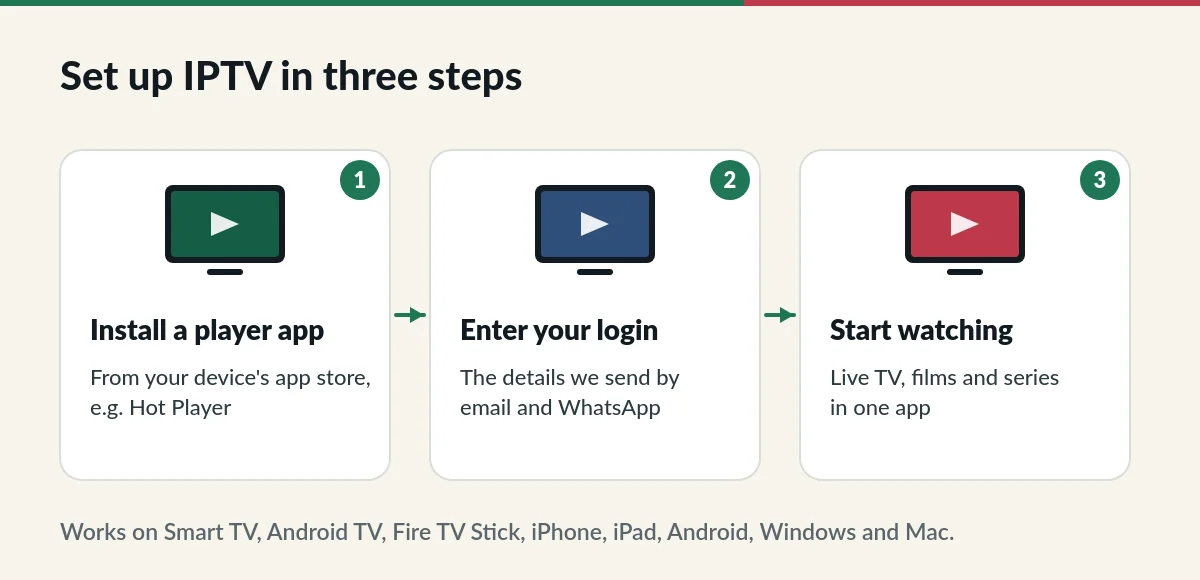
Before you start your IPTV setup
- Your login details: a username and password sent by email and WhatsApp after payment. Check your junk folder if you cannot find the email.
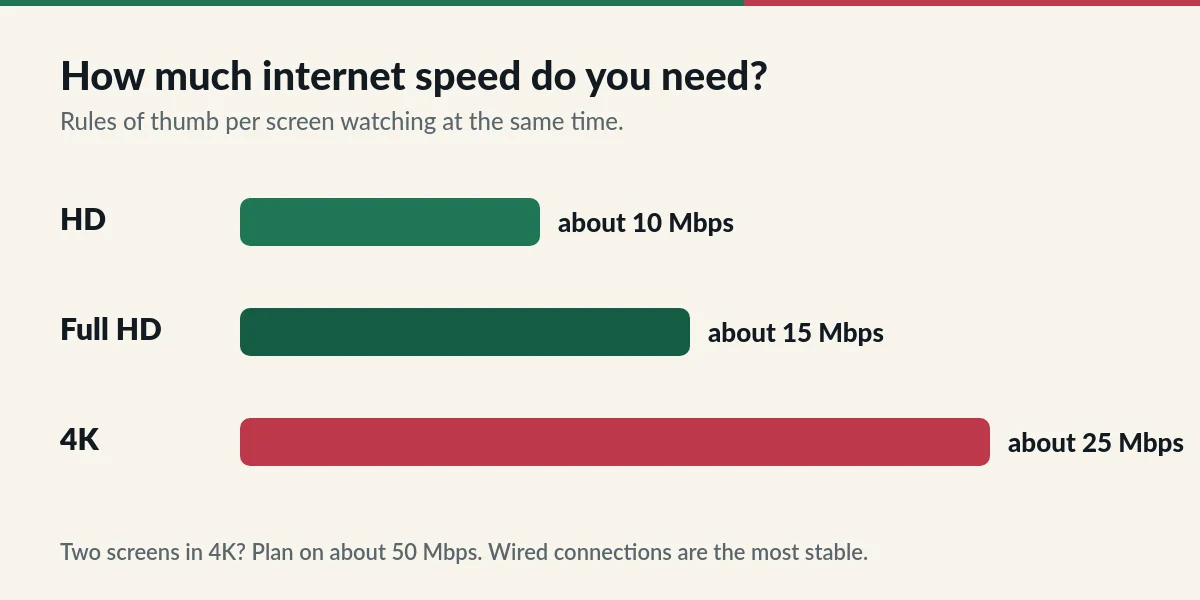
- A stable internet connection: about 10 Mbps per screen for HD and about 25 Mbps for 4K.
- Your device remote or touchscreen, and a few minutes.
- Usernames and passwords are case-sensitive: copy them exactly as we send them.
IPTV setup on Fire TV Stick and Android TV
Fire TV Stick, Android TV boxes and Google TV devices all use Android, so the steps are similar. Some player apps are in the official app store; others are installed with the free Downloader app.
- Open Settings > My Fire TV (or Device) > Developer options and allow apps from unknown sources for Downloader. On Android TV, the setting is under Security or Apps.
- Install Downloader from the app store, open it and enter the app code we send you with your login.
- Install the player app (for example Hot Player) and open it.
- Choose to sign in with a username and password, enter the details we sent and confirm.
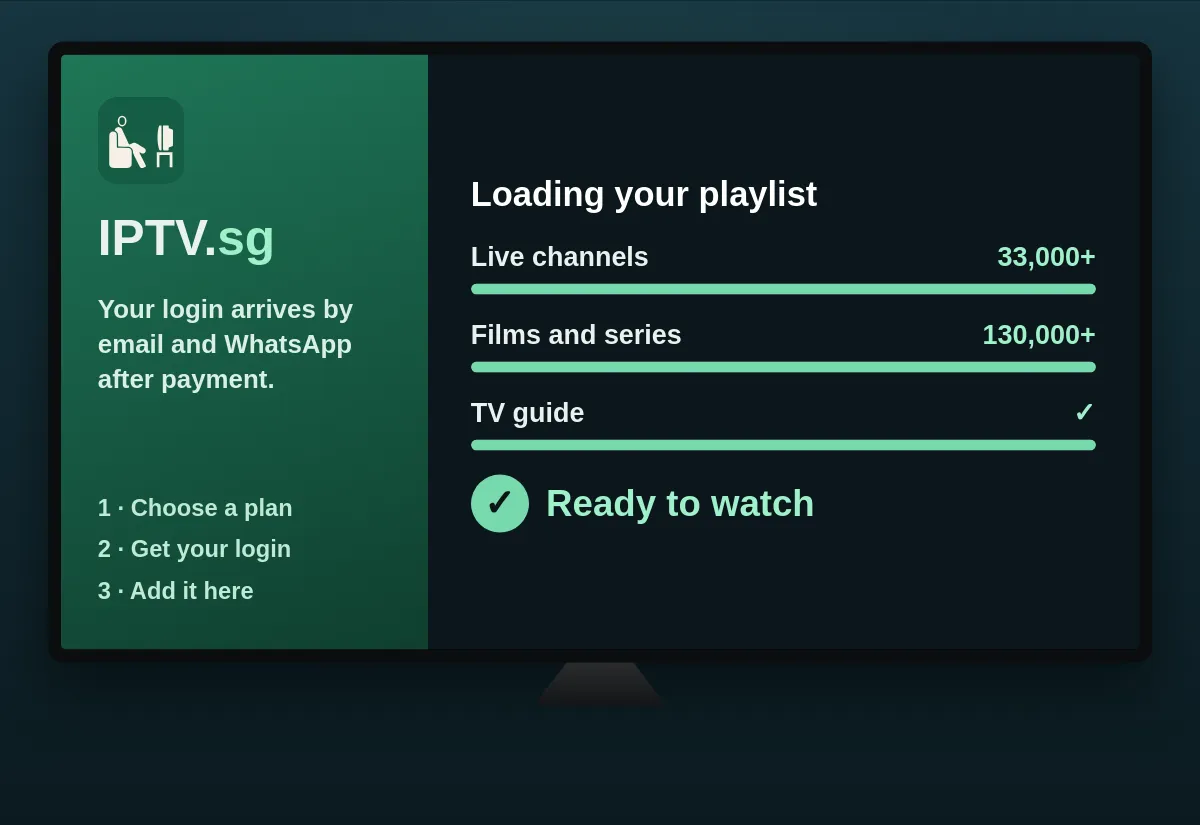
- Wait a minute while the channel list and film library load, then start watching.
Want every Fire TV menu explained with a diagram, including newer sticks that only install Appstore apps? Follow our step-by-step guide to IPTV on Firestick.
On Android TV or Google TV, start with Google Play: our guide to IPTV on Android TV shows both install routes and the menus on each version.
For background on the device itself, see this Fire TV overview.
IPTV setup on Samsung and LG Smart TVs
- Open your TV’s app store (Samsung Apps on Tizen, LG Content Store on webOS).
- Search for a compatible IPTV player such as Hot Player and install it.
- Open the app. If it shows device details on the start screen, keep them handy; some apps need them for activation.
- Sign in with your username and password, or send us the device details so we can activate it.
Older Smart TVs sometimes lack compatible apps. In that case, a Fire TV Stick or Android TV box plugged into the HDMI port is the easiest fix.
Setting up a Samsung TV? Our guide to IPTV on Samsung Smart TV covers the Apps store, the MAC address and the Samsung settings that help.
Have an LG TV? Our guide to IPTV on LG Smart TV shows where each webOS menu sits on your model year.
IPTV setup on iPhone, iPad and Android phones
- Install a compatible IPTV player from the App Store or Google Play.
- Open the app and choose to add a playlist or account with a username and password.
- Enter your details and wait for the content to load.
- Use AirPlay or Chromecast if you want to send the picture to a TV.
IPTV setup on Windows and Mac computers
On a computer, install a desktop IPTV player and sign in the same way. Many people prefer a TV device for everyday viewing, but a laptop is handy when you travel within your plan or want to watch in another room.
On Windows, our guide to IPTV for PC compares the free players and shows where your two links go.
Signing in: what to enter
Most players only need your username and password: the app connects to the right server automatically. Some apps ask for a server address or an M3U link instead. If your app asks for something you did not receive, message us with the app name and we will send the right details.
Using IPTV Smarters Pro? The IPTV Smarters Pro setup guide shows its four login boxes and fixes for the usual errors.
Your app asks for a server URL or a playlist link during IPTV setup? Our guides to Xtream Codes and M3U playlists explain both, with the usual errors.
Not sure which app to install? Compare the best IPTV player apps for your device.
If something goes wrong during setup
The app says my login is wrong.
Check capital letters and spaces: details are case-sensitive. Copy and paste them if your device allows it. If it still fails, send us a photo of the error.
Channels load but do not play.
Restart the app and the device, then try another channel. If several channels do not play, see our troubleshooting guide or contact us.
I cannot find the app on my TV.
Send us your TV model on WhatsApp. We will suggest a compatible app or a simple streaming stick that works.
For freezing or buffering, follow the IPTV troubleshooting guide or our IPTV buffering fix guide. For the Hot Player app, read the Hot Player IPTV page.
Useful pages: IPTV Standard · IPTV Premium · Standard vs Premium · Plans and prices · How to buy · Channels and VOD · Renewal · Lifetime IPTV
Stuck during IPTV setup?
Send us your device model and a photo of the screen. We will guide you step by step.