Compatibility
IPTV supported devices: what works with IPTV.sg
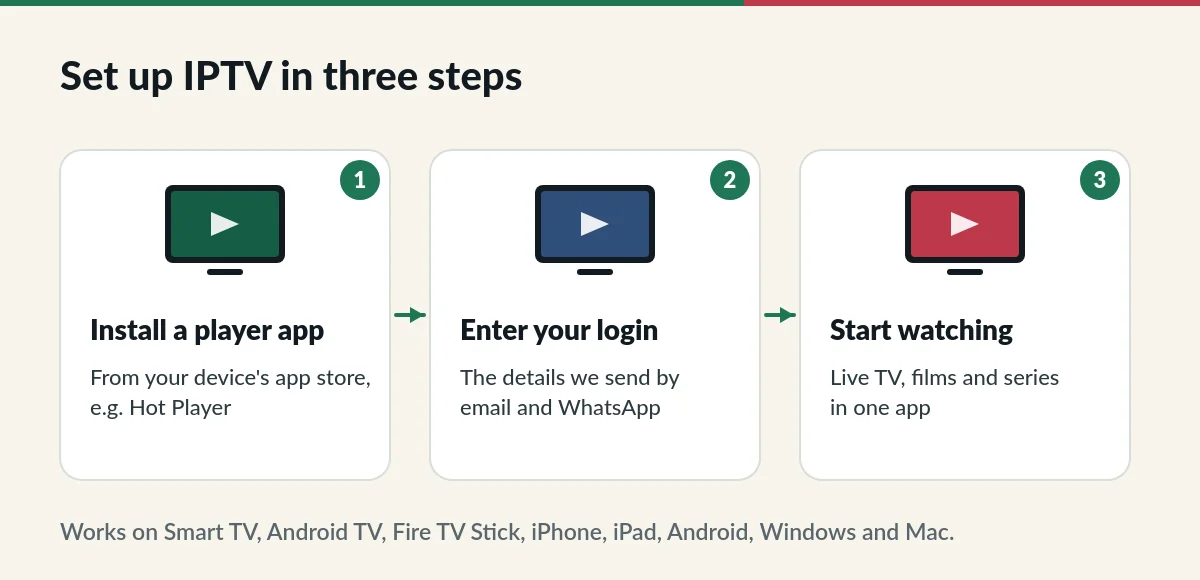
IPTV supported devices include most Smart TVs from recent years, Android TV boxes, Amazon Fire TV Stick, iPhone, iPad, Android phones and tablets, and Windows or Mac computers. Here is how to check yours.
IPTV supported devices at a glance
| Device | Works with IPTV.sg | Notes |
|---|---|---|
| Samsung Smart TV (Tizen) | Yes, most models from recent years | Install a compatible player from Samsung Apps |
| LG Smart TV (webOS) | Yes, most models from recent years | Install a compatible player from the LG Content Store |
| Android TV and Google TV | Yes | Includes many Sony, TCL and Xiaomi TVs and boxes |
| Amazon Fire TV Stick | Yes | A simple way to upgrade an older TV |
| iPhone and iPad | Yes | Player apps from the App Store |
| Android phones and tablets | Yes | Player apps from Google Play |
| Windows and Mac | Yes | Desktop IPTV players |
| Apple TV | Usually | Depends on the player app available |
Smart TVs
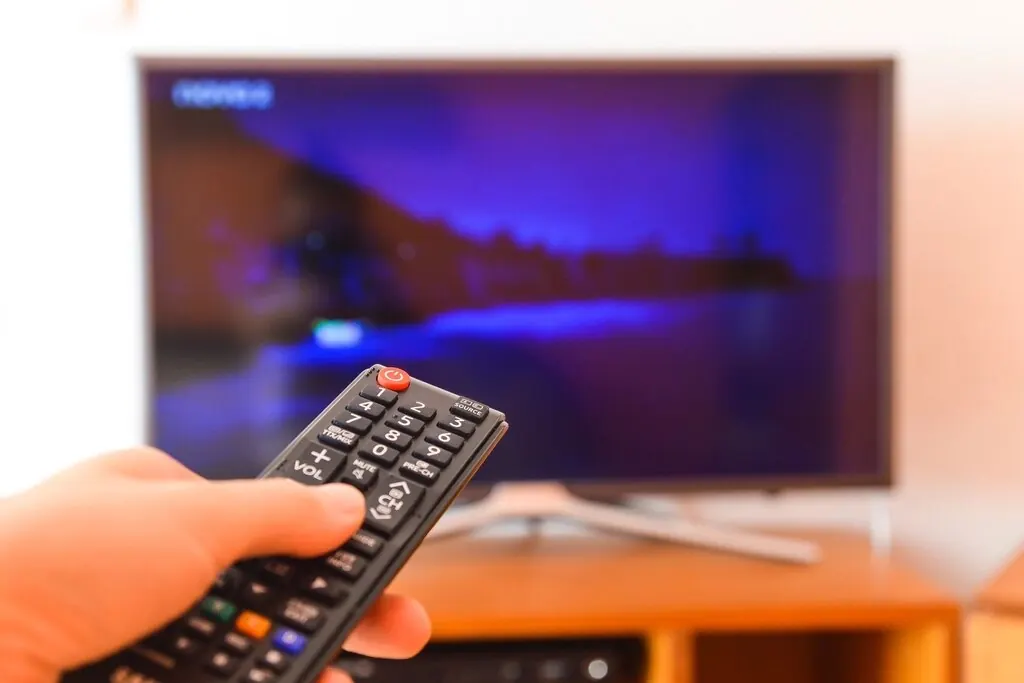
Most Samsung and LG Smart TVs sold in the last few years run compatible player apps. Older models may not have them in their app store. If yours does not, plug a streaming stick into a free HDMI port; it is the quickest way to make an older TV work. Wikipedia has a good overview of how Smart TV platforms differ.
Streaming sticks and Android TV boxes
Amazon Fire TV Stick and Android TV boxes are popular because they support many player apps and connect to any TV with HDMI. Choose a device from a well-known brand that receives software updates. A model with an Ethernet port, or a stick close to your router, gives the steadiest picture.
Be careful with boxes sold as “all channels free” or pre-loaded with unknown apps. You do not need a special box for IPTV.sg: a standard streaming device and a legitimate player app are enough.
Phones and tablets
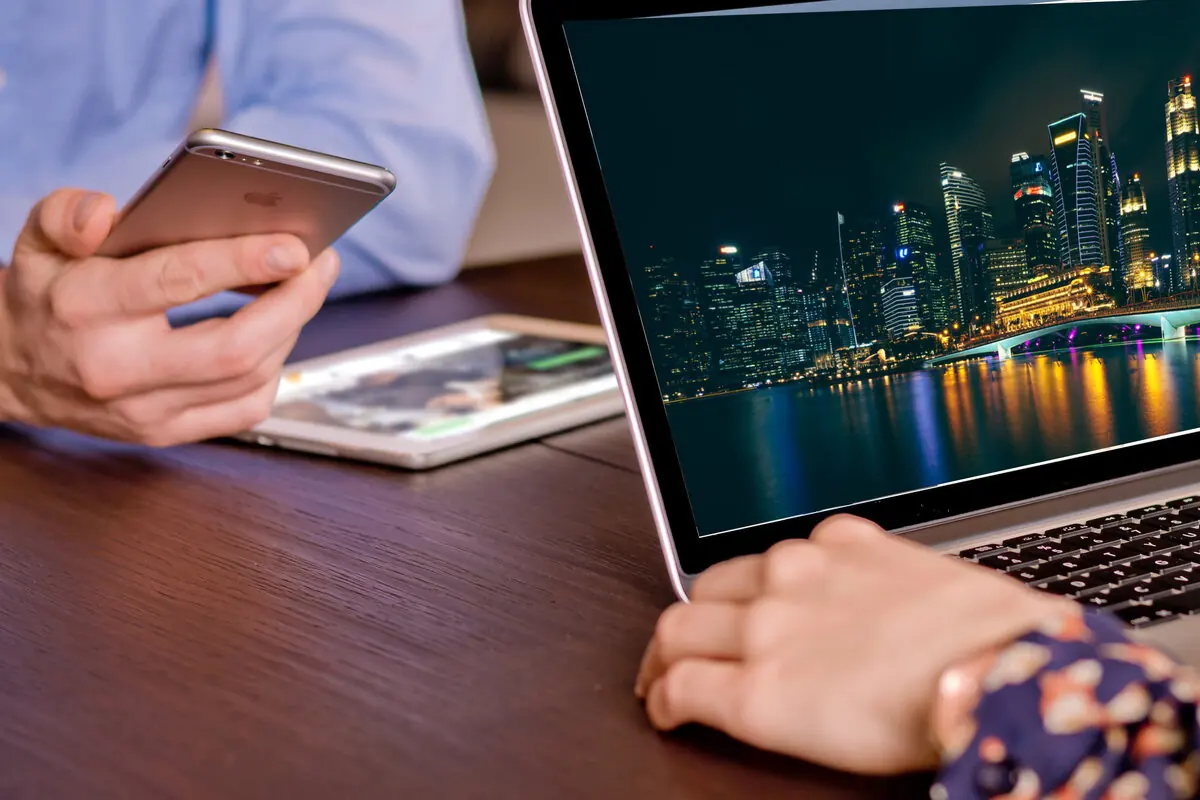
iPhone, iPad and Android devices run many IPTV players. They are perfect for watching in another room or for casting to a TV with AirPlay or Chromecast. Remember that each device playing at the same time counts towards the screens on your plan.
Computers
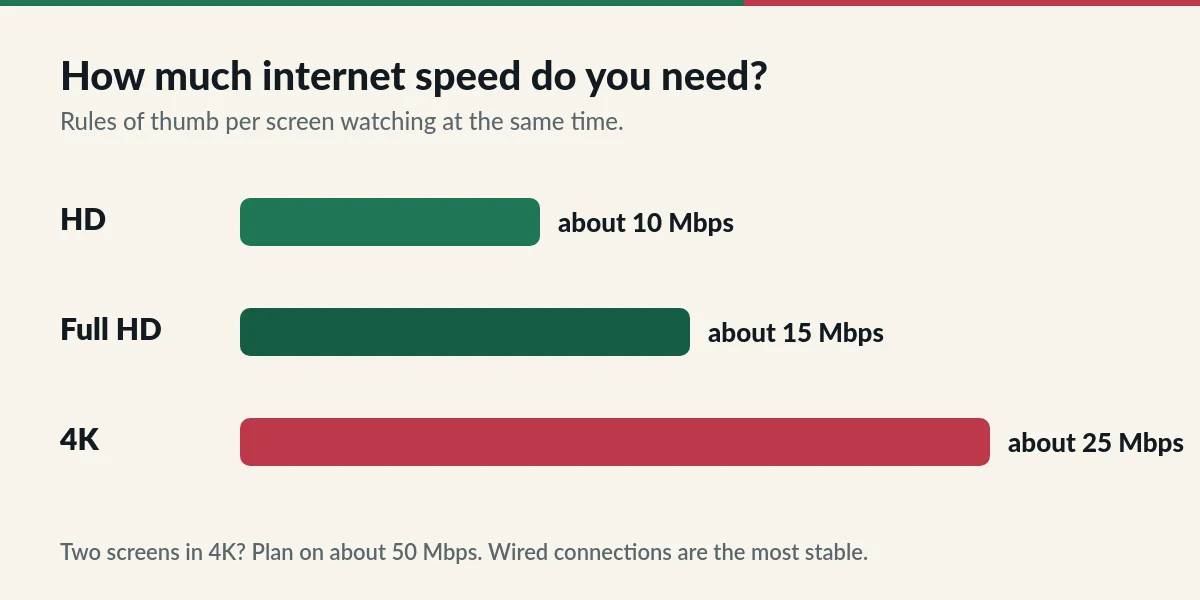
Windows and Mac computers work with desktop IPTV players. Use a wired connection or strong Wi-Fi for 4K.
How to check your device before you buy
- Find the model name in your TV or device settings (often under About).
- Search your device’s app store for an IPTV player such as Hot Player.
- Not sure? Send us the model on WhatsApp and we will confirm before you order.
Buying a new device for IPTV
- Pick a device from a well-known brand that still receives software updates.
- Look for at least 2 GB of memory and Wi-Fi 5 or newer; an Ethernet port is a bonus.
- For 4K, check that both the device and your TV support 4K and HDR.
- Avoid boxes that come pre-loaded with unknown apps or promise free channels. A standard device and a legitimate player app are all you need.
Questions about IPTV supported devices
Can I use the same login on my TV and my phone?
Yes, as long as the number of screens playing at the same time stays within your plan: 1, 2 or 3 depending on what you chose.
Does IPTV.sg work on a computer browser?
Use a desktop IPTV player app rather than a web browser for the most reliable playback.
My TV is more than eight years old. Will it work?
Probably not with an app on the TV itself, but a streaming stick plugged into the HDMI port will make it work.
Next step: follow the IPTV setup guide for your device, or compare plans and prices.
Not sure about your device?
Send us the model name and we will check it for you.