Guide
IPTV Smarters Pro setup and login
Install the app, sign in with Xtream Codes and fix login errors.
Device guide
Setting up IPTV on Firestick takes about ten minutes: you unlock Developer options, install a player with the free Downloader app and sign in. This guide walks through every Fire TV menu and what to do on newer sticks that only install Appstore apps.
IPTV on Firestick works on every current Fire TV Stick. The 4K and 4K Max models have quicker processors and stronger Wi-Fi, so menus feel snappier and 4K channels have more headroom. The Lite and the basic stick are fine for HD on a bedroom TV. Our 4K IPTV guide lists what else 4K needs.
Before you buy, read the section on Vega OS below: a few newer Amazon models only install apps from the Amazon Appstore, and that changes how you set up IPTV on Firestick. For other options, see all IPTV supported devices.
To set up IPTV on Firestick, have these ready:
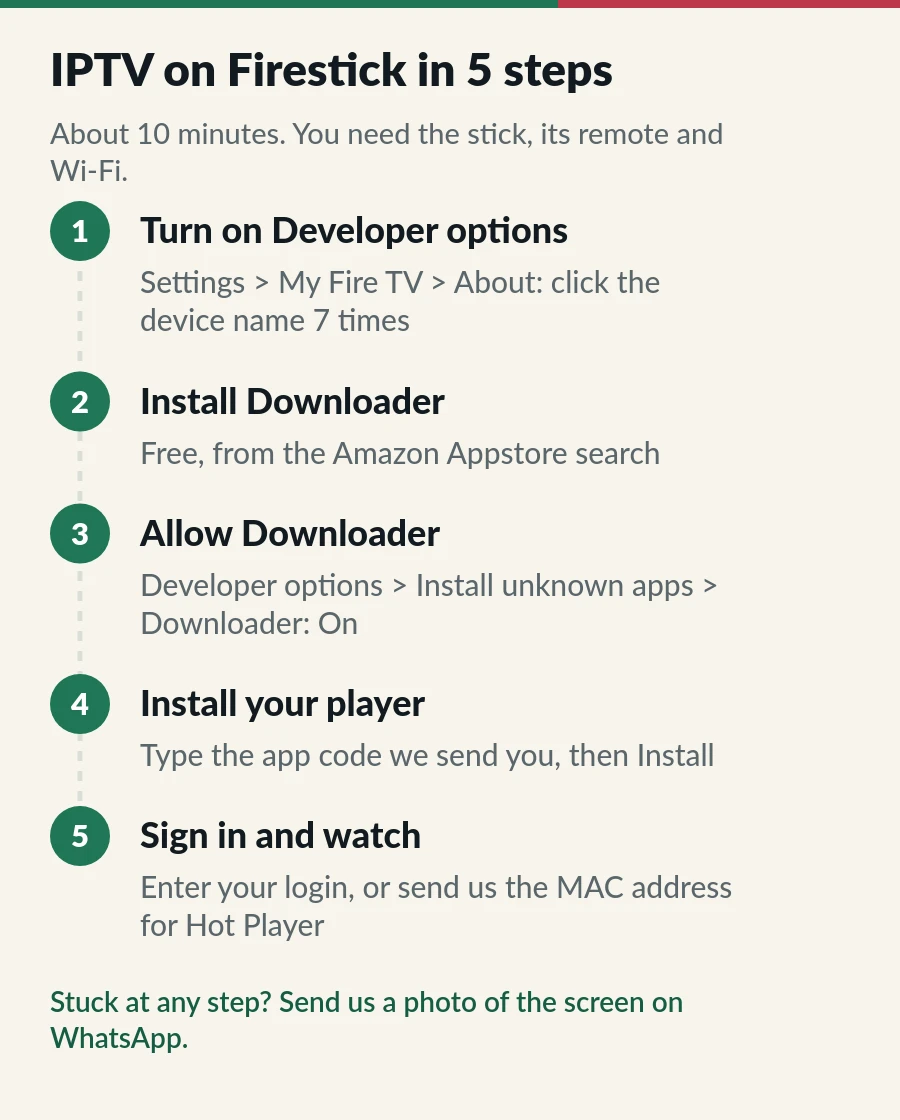
Go to Settings > My Fire TV > About. Highlight your device name, for example “Fire TV Stick 4K”, and press the select button seven times. A message tells you that you are now a developer. On older sticks, Developer options is already in the menu.
From the home screen open Find, search for “Downloader” and install the free app with the orange icon. It is a simple browser for downloading apps.
Go back to Settings > My Fire TV > Developer options > Install unknown apps and switch Downloader on. On older menus the switch is called “Apps from Unknown Sources”. Downloader only appears in that list after it is installed, which is why this comes third.
Open Downloader, allow access to storage, type the app code from our message and select Go. When the installer opens, choose Install, then Done. Delete the installer file when Downloader offers it, to keep space free. Using a player that asks for a username, password and server URL? Our IPTV Smarters Pro guide explains that kind of sign-in.
Open the player. Hot Player shows a MAC address on its start screen: send it to us on WhatsApp and we activate the app for you. Other players ask for your username, password and server URL instead. That is it: IPTV on Firestick is ready to watch.
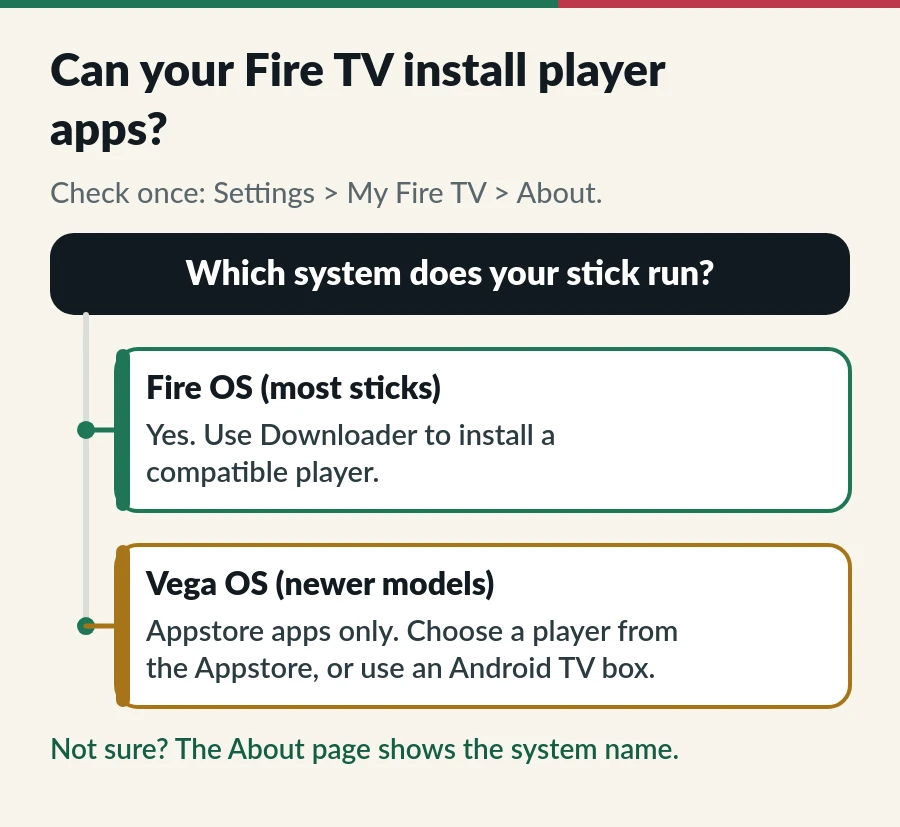
Most Fire TV Sticks run Fire OS, which is based on Android, so the Downloader method works. Some newer Amazon models run Vega OS, Amazon’s newer system, and only install apps from the Amazon Appstore. On those, pick a player that is in the Appstore, or use an Android TV or Google TV device instead. Our IPTV on Android TV guide covers those.
| Problem | Fix |
|---|---|
| No Developer options menu | Settings > My Fire TV > About, then click the device name seven times. |
| Downloader is not in “Install unknown apps” | Install Downloader first; the switch appears afterwards. |
| “App not installed” or a parse error | The download did not finish. Check the code, free some space and try again. |
| The app is not on the home screen | Open Your apps and channels, then move it to the front. |
| “Invalid login” | Retype the details exactly, or copy them from our message. |
| Buffering | Move closer to the router, use 5 GHz or a cable. See IPTV buffering fixes. |
IPTV on Firestick is ready once the app is in, and both of our plans work for IPTV on Firestick. What you watch, and on how many screens, depends on the plan.
Yes, as long as you only install apps from sources you trust. Leave the setting switched on for Downloader alone and install players from official sources or with the code we send. Our IPTV APK guide shows how to check a file first.
Not easily now. It is no longer on Google Play, and the old website that offered the Fire TV download is offline, so there is no official source we can point you to. Hot Player, installed with the app code we send you, does the same job.
About ten minutes the first time: two minutes for Developer options, a few for Downloader and the player, and one to sign in.
No, not for our service. A VPN adds a detour for every stream and can make the picture slower.
Standard covers one, two or three devices on one account; Premium gives each viewer an account. See IPTV on multiple devices.
Usually, yes. Use a proper plug adapter and sign in with your Amazon account. Some Appstore apps differ by region.
Guide
Install the app, sign in with Xtream Codes and fix login errors.
Guide
Six player apps compared by device, sign-in, TV guide and price.
Guide
Five checks for a sharper picture: TV, device, HEVC, speed and channel.
Guide
Find where it buffers, then nine fixes in order, easiest first.
Pick a plan and we send your login and app code by email and WhatsApp.