Guide
MyIPTV Player on Windows: setup in 5 steps
Add your playlist and TV guide on Windows or Xbox.
Apps, boxes and your account
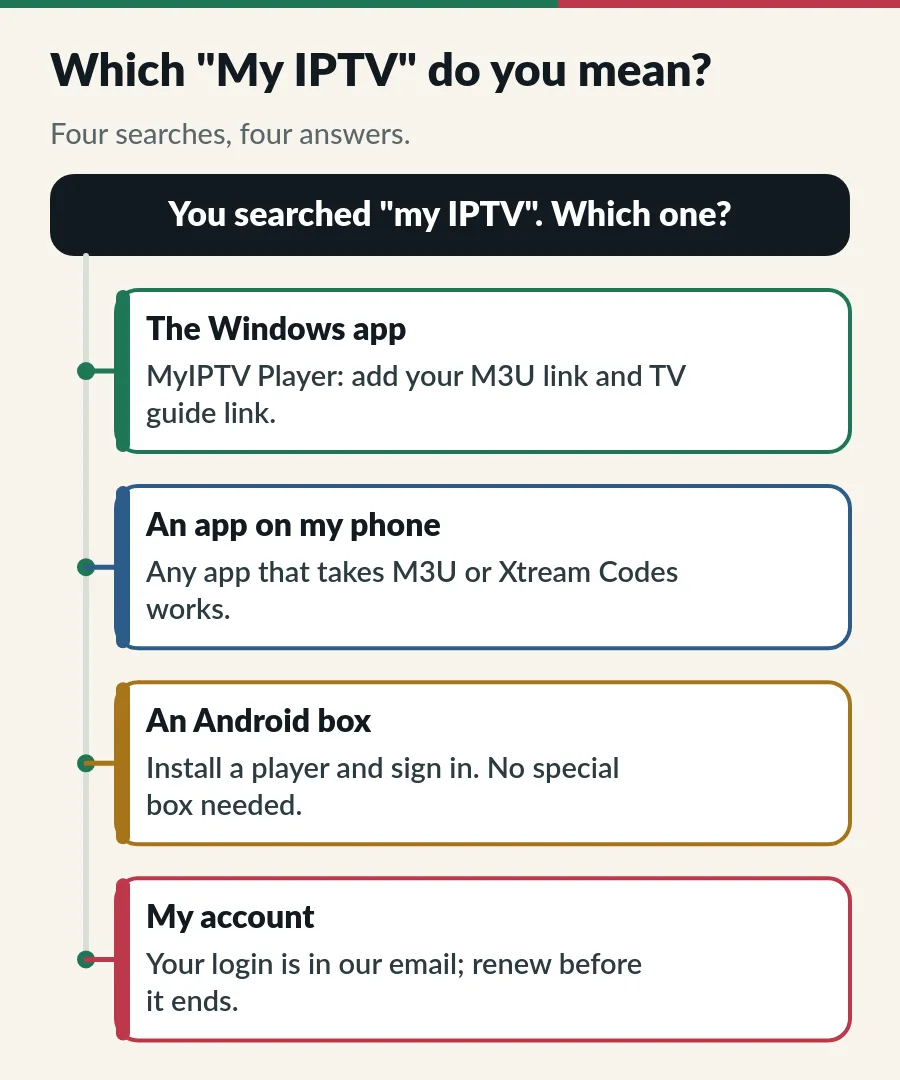
Searching for “My IPTV” usually means one of four things: the MyIPTV Player app for Windows, a phone app with a similar name, an Android box sold as “MyIPTV”, or your own IPTV account. Here is how each one works with an IPTV.sg login.
“My IPTV” is not one product. In Singapore the search covers a Windows app called MyIPTV Player, several phone apps with similar names, Android boxes sold online under the MyIPTV name, and people simply looking for their own IPTV login. None of the apps comes with channels: each one is a player that needs a subscription.
MyIPTV Player is a free app in the Microsoft Store for Windows 10 and 11 and for Xbox. The app plays an M3U playlist with a TV guide, which makes it a tidy way to watch an IPTV.sg plan on a laptop or a TV connected to a PC.
Menu names can change between versions. If the TV guide stays empty, our EPG guide shows the usual fixes.
The phone stores list many apps with “My IPTV” or “IPTV Player” in their name, from different developers. Any app that accepts an Xtream Codes login or an M3U link works with your IPTV.sg plan. On iPhone and iPad we suggest Smarters Player Lite (see our IPTV Smarters Pro guide) or Hot Player; on Android, Hot Player is the easiest. Hot Player activation is included with your plan on both. Compare more in the best IPTV player apps.
Online shops in Singapore sell Android boxes under names like “MyIPTV 4K”. You do not need a special box to watch IPTV.sg. If you already have an Android box, install a player app and sign in with your IPTV.sg login, as on any Android TV device. If you have no box yet, a smart TV app or a Fire TV Stick is usually enough; see lifetime IPTV box or app?.
| Your device | App | Where to get it |
|---|---|---|
| Windows PC or Xbox | MyIPTV Player | Microsoft Store |
| iPhone or iPad | Smarters Player Lite | App Store |
| Android phone or tablet | Hot Player | The link or app code we send |
| Fire TV Stick | Hot Player | Downloader app + the app code we send |
| Android TV / Google TV | A player from Google Play | Google Play first |
| Samsung or LG smart TV | A player from the TV store | Apps on the TV |
Each device has its own guide in our IPTV setup guide.
Pick the app that matches the screen you watch most. On a computer, MyIPTV Player is simple and free. On a TV, Hot Player is the easiest because we activate it for you. On an iPhone, Smarters Player Lite signs in with three details, and Hot Player works there too. You can use different apps on different devices with the same login, as long as you stay within the screens your plan allows. Not sure? Send us your device model on WhatsApp and we suggest one.
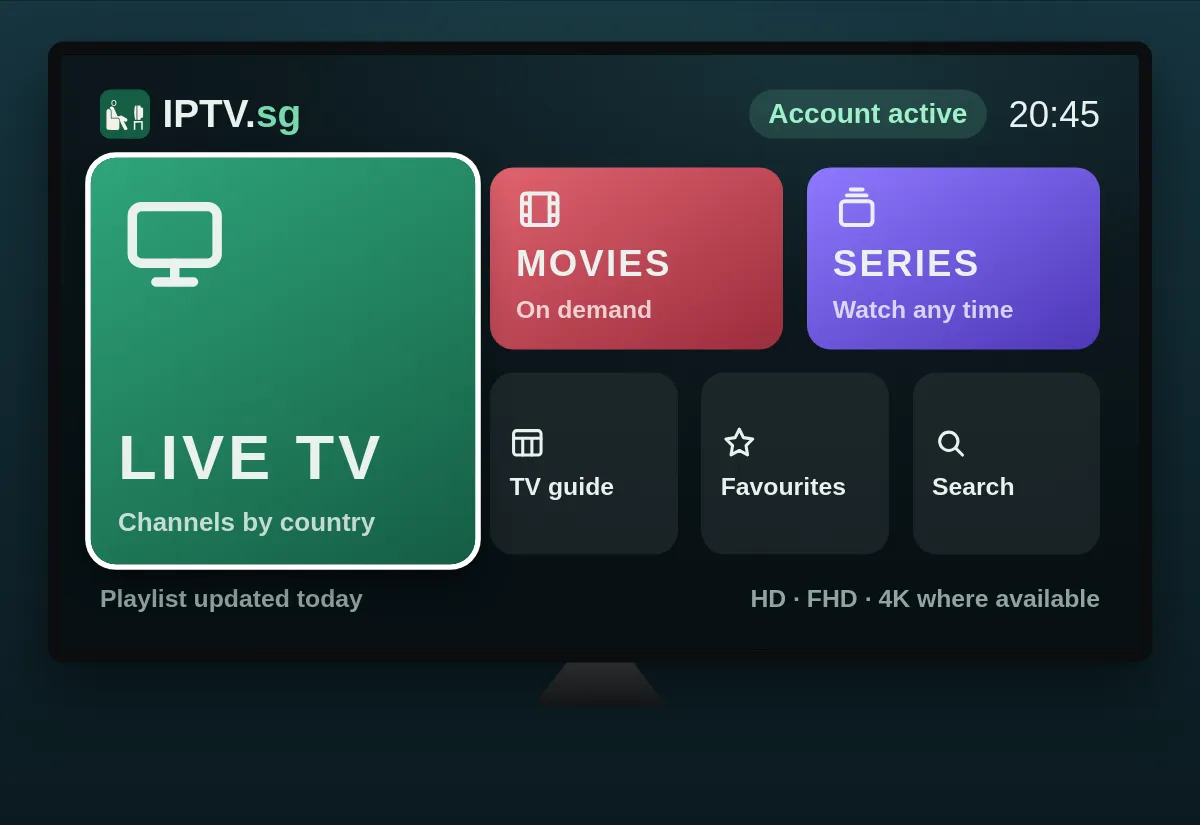
Your IPTV account is the username and password we send by email and WhatsApp after payment; check your junk folder if you cannot find it. Whoever sent that message is your IPTV provider. Not sure when your plan ends? Message us your username (never your password) and we tell you; renewing before the end date keeps the same login (see IPTV renewal).
It is listed as a free download in the Microsoft Store. It is only a player: the channels come from your subscription.
No. The apps are players. You need an IPTV subscription and its login.
Yes, within your plan: Standard covers 1 to 3 devices on one account, and each Premium account plays on one screen at a time.
Check capital letters and spaces, or copy and paste the details. If it still fails, send us a photo of the message.
Guide
Add your playlist and TV guide on Windows or Xbox.
Guide
The right app for each device, and how to sign in.
Guide
Find out in minutes, and find your login and expiry date.
Useful pages: IPTV Standard · IPTV Premium · Standard vs Premium · How to buy · Channels and VOD · Lifetime IPTV
Tell us your device and app; we reply on WhatsApp.