Guide
IPTV Smarters Pro setup and login
Install the app, sign in with Xtream Codes and fix login errors.
Device guide
IPTV on iPhone turns your phone or iPad into a personal TV. Here is which App Store player to pick, how to sign in in four steps, how to send the picture to your TV and how much mobile data it uses.
In most Singapore homes the living room TV is shared, but the phone in your pocket is yours. IPTV on iPhone turns it into a personal TV: catch the evening news on the bus home, keep a live match running in the kitchen, or let the kids watch cartoons on the iPad while the grown-ups use the big screen.
For a second screen, IPTV on iPad is even better. The larger display fits the TV guide and the picture side by side, and it is light enough to carry from room to room. Both run the same apps and use the same login, so everything in this guide works on either.
The app is only the screen: it has no channels of its own, and the channels, films and series come from your plan. The App Store is full of IPTV players, many of them near-copies of each other. These three are well established and cover what most people want from IPTV on iPhone.
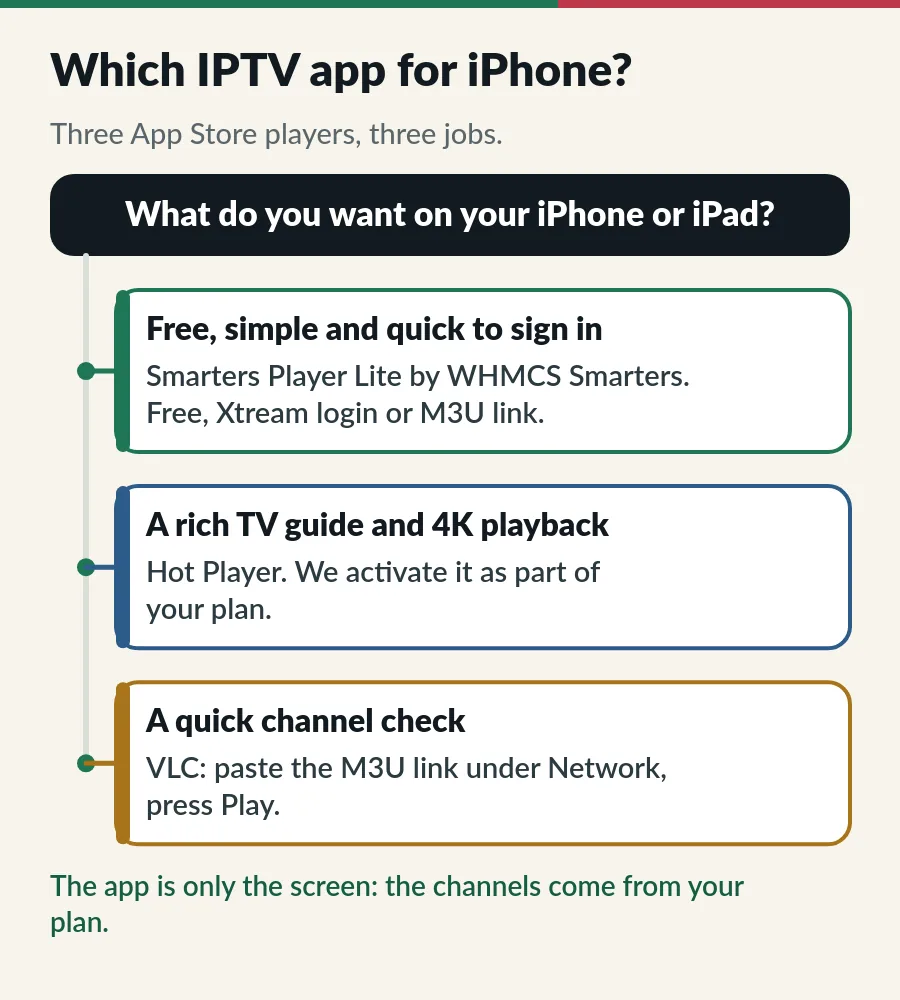
| App | Best for | Signs in with | Cost |
|---|---|---|---|
| Smarters Player Lite | Simple everyday viewing | Xtream Codes login or M3U link | Free |
| Hot Player | A rich TV guide, 4K and HDR | Xtream Codes login or M3U link | Activation included in your plan |
| VLC | A quick check of one channel | M3U link | Free |
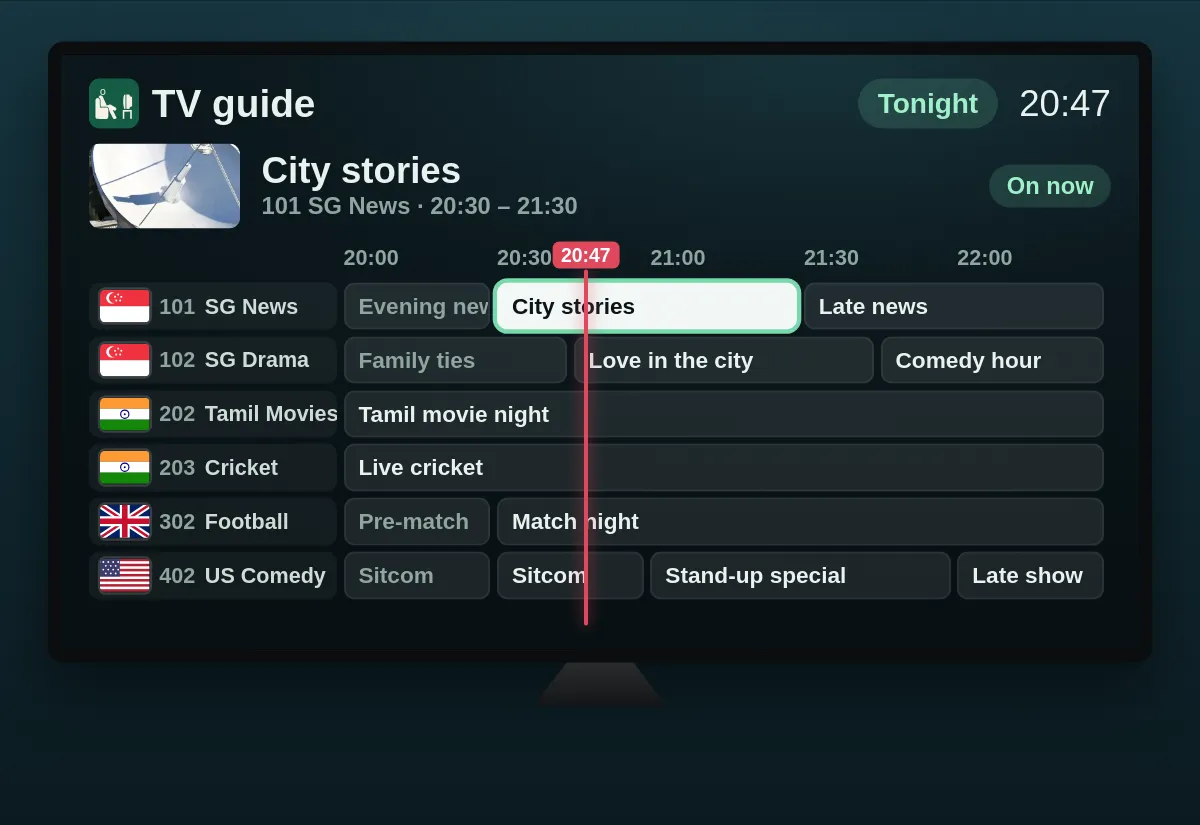
Smarters Player Lite is the iPhone and iPad version of IPTV Smarters, made by WHMCS Smarters. It is free, needs iOS 15.6 or later and signs in with an Xtream Codes login in four boxes, then shows live TV, films and series with a TV guide. It is the one we suggest for IPTV on iPhone if you simply want to start watching. Our IPTV Smarters Pro guide walks through every screen.
Hot Player is the app we activate on smart TVs and sticks, and it is in the App Store for iPhone and iPad too (iOS 15 or later). It adds a polished TV guide, 4K and HDR playback, favourites and a PIN lock. Activation is part of your plan: send us the device details (MAC address) shown in the app on WhatsApp with your order number, and we activate it, so you can skip the yearly subscription the app offers through your Apple ID. Your plan includes one activation for each device on Standard and one for each account on Premium; our Hot Player IPTV page explains how it works.
VLC is the free, open-source player from VideoLAN. It opens your M3U link in seconds under Network, then Open Network Stream, but shows the channels as one long list with no TV guide. Keep it for checking that a channel plays, or as a backup. The best IPTV player apps guide compares players for every other screen.
Looking for Kodi? It is not in the App Store, and the tools that “sideload” it onto an iPhone are fiddly and break with updates. For IPTV on iPhone, an App Store player is simpler and safer.
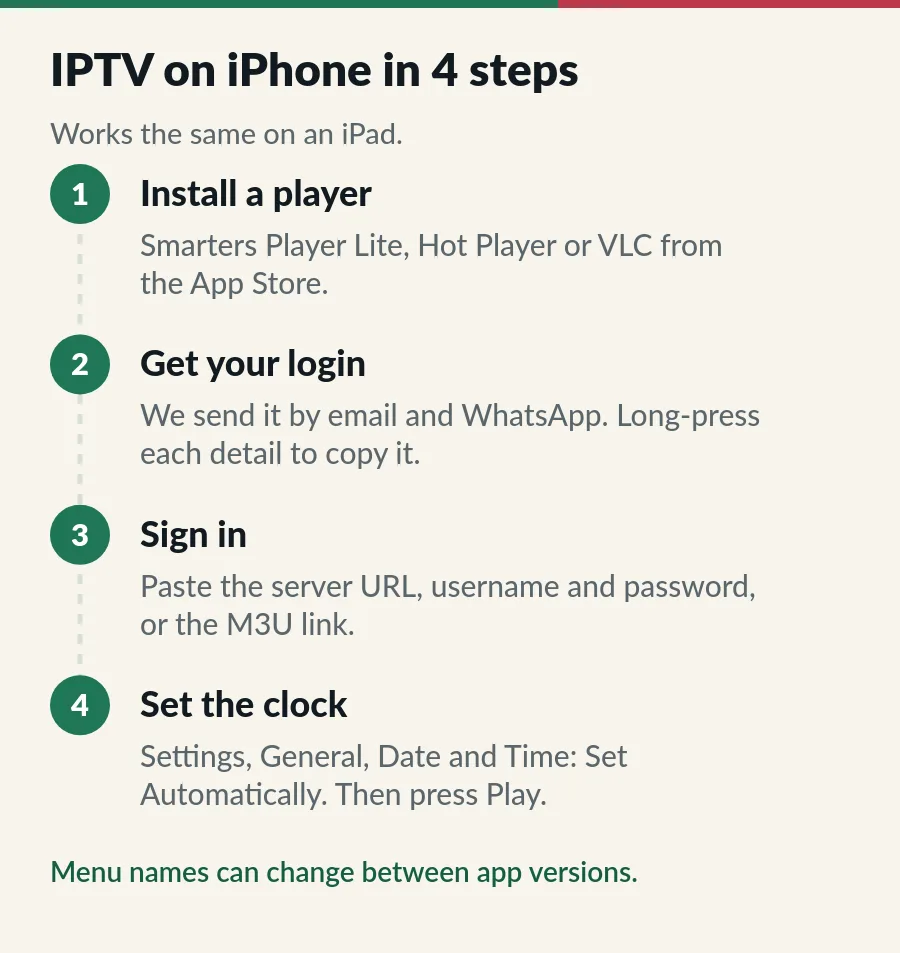
Menu names can change from one app version to the next; if a button is called something slightly different, look for the playlist or account settings. Our Xtream Codes guide explains each part of the login and what the usual error messages mean, and the M3U playlist guide covers the single-link option.
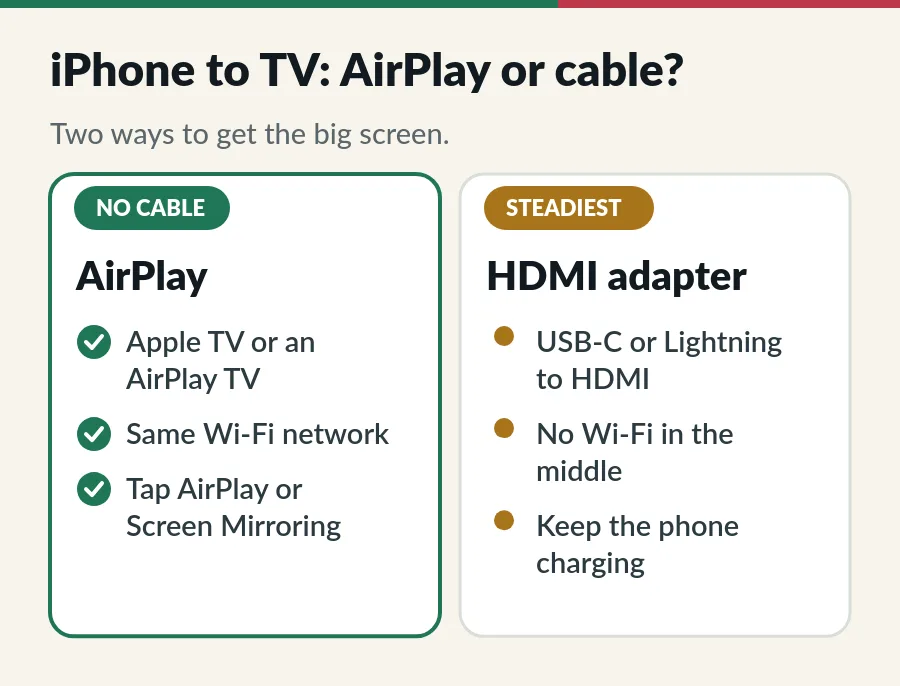
With AirPlay. If you have an Apple TV, or a smart TV that supports AirPlay, start a channel and tap the AirPlay icon in the player if it shows one. If not, open Control Centre, tap Screen Mirroring and pick the TV. Both need to be on the same Wi-Fi. AirPlay is the quickest way to share IPTV on iPhone with the room, though a weak Wi-Fi signal can make the picture stutter.
With a cable. The iPhone 15 and later, and most recent iPads, have a USB-C port: a USB-C to HDMI adapter carries the picture and sound to any TV. Older iPhones with a Lightning port need a Lightning to HDMI adapter, such as Apple’s Lightning Digital AV Adapter. If the adapter has a charging port, plug the charger in for a long match, then switch the TV to that HDMI input.
For everyday viewing on the big screen, a dedicated device is easier than a phone on the coffee table: a Fire TV Stick or an Android TV box runs Hot Player, which we activate for you. See the IPTV setup guide for each device, and IPTV on Mac if someone at home uses a MacBook.
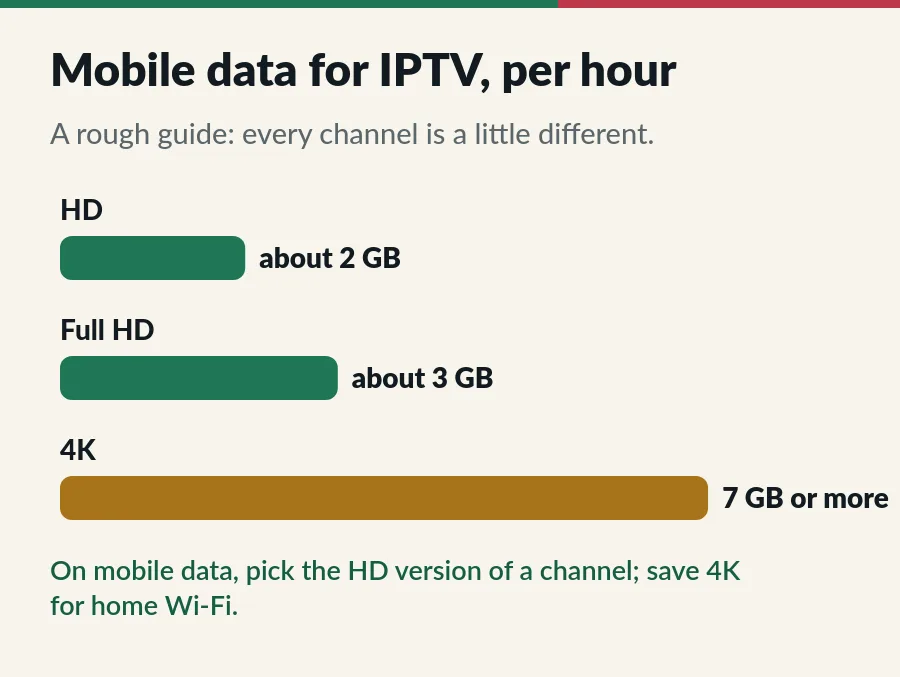
Video uses far more data than browsing. How much depends on the channel and the app, but as a rough guide an hour of IPTV on iPhone uses:
A few small changes make IPTV on iPhone and iPad smoother, especially for long films and live sport.
Install players only from the App Store, and check the developer name before you tap Get: many apps borrow the Smarters name or copy each other’s icons. Never install a “profile” or a certificate from a website that offers free IPTV apps or ready-made channel lists; those can give a stranger control over parts of your phone.
Treat your login like a password: the server URL, username and password, or the playlist link, give access to your plan. Do not post them in chat groups or paste them into websites that offer to “check” playlists. If you think they have leaked, message us and we help you secure your account. Screens you add at home count within your plan; our page on IPTV on multiple devices explains how.
| What you see | What to try |
|---|---|
| Login failed | Copy the server URL, username and password again, with no space at the end. The URL must start with http:// and include the port if we sent one. |
| No channels after signing in | Close the app fully (swipe it away), open it again and refresh the playlist. |
| TV guide is empty | Refresh the TV guide in the app’s settings and give it a few minutes; see the EPG guide. |
| Guide times are hours out | Turn on Set Automatically in Settings, General, Date and Time, with Singapore as the time zone. |
| Picture stops and starts | Move closer to the router, use 5 GHz Wi-Fi or pick the HD version; see the IPTV buffering fixes. |
| AirPlay cannot find the TV | Put the iPhone and the TV on the same Wi-Fi and restart both; on some TVs AirPlay must be switched on in the settings first. |
| Stops when another screen starts | Check how many screens your plan covers (Standard vs Premium). |
| Plan expired message | Renew before the end date to keep your login (see IPTV renewal). |
Still stuck? Work through the IPTV troubleshooting checks in order, or message us on WhatsApp with the app name and a screenshot (press the side button and volume up together, or the side and Home buttons on older iPhones).
With IPTV on iPhone the app is free or comes with a trial; the channels come from your plan. Here is where to go next.
Yes. Smarters Player Lite and VLC are free in the App Store, and Hot Player activation is part of your plan. None of them include channels: they play the login from your IPTV plan.
Yes. On iPhone and iPad it is listed as Smarters Player Lite, by WHMCS Smarters. Many other apps use the Smarters name, so check the developer before you install. See our IPTV Smarters Pro guide.
Yes. Hot Player is in the App Store for iPhone and iPad (iOS 15 or later), and its activation is part of your plan: send us the MAC address shown in the app with your order number and we activate it. You do not need the subscription the app offers.
Yes, within your plan. Standard covers 1 to 3 devices on one account, all playing at once on a 3-device plan. Premium gives 1 to 3 separate accounts, and each plays on one screen at a time.
Yes. HD uses about 2 GB an hour and 4K 7 GB or more, so pick HD on 4G or 5G and keep 4K for Wi-Fi.
Use a player app instead. Safari cannot turn an IPTV login or playlist into a TV guide, and playback in a browser is far less reliable.
Yes. Smarters Player Lite, Hot Player and VLC are all in the Apple TV App Store; our guide to IPTV on Apple TV shows the setup.
Guide
Install the app, sign in with Xtream Codes and fix login errors.
Guide
Six player apps compared by device, sign-in, TV guide and price.
Guide
Pick a player for macOS, add your login and watch on your Mac or TV.
Page
Smart TVs, sticks, phones, tablets and computers.
Message us on WhatsApp and we send the login or playlist link your iPhone app needs.