Guide
IPTV on Android TV
Google Play first, the Downloader route when you need it.
Device guide
IPTV on Android phone takes a few minutes: install Hot Player and let us activate it, or pick a free player from Google Play. Here are both routes step by step, how to put the picture on your TV and how to keep mobile data in check.
Your Android phone already has everything a TV needs: a sharp screen, speakers and an internet connection. All it is missing is a player app, the piece of software that turns the login from your plan into channels, a TV guide, films and series. For IPTV on Android phone there are two good ways to get one, and which suits you depends on how you like to install apps.
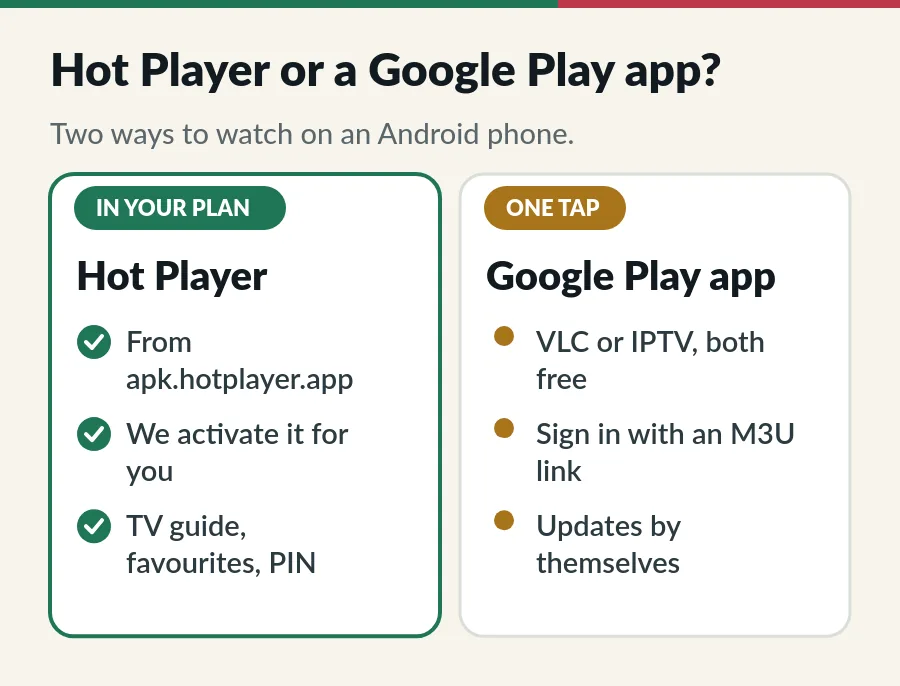
Both use the same login, so you can start with one and switch later. Everything in this guide works on an Android tablet too; the bigger screen just makes the TV guide easier to read.
Hot Player on a phone counts as one device. Your plan includes one Hot Player activation for each device on Standard and one for each account on Premium; for a phone on top of that, a Hot Player licence covers it for S$25 once.
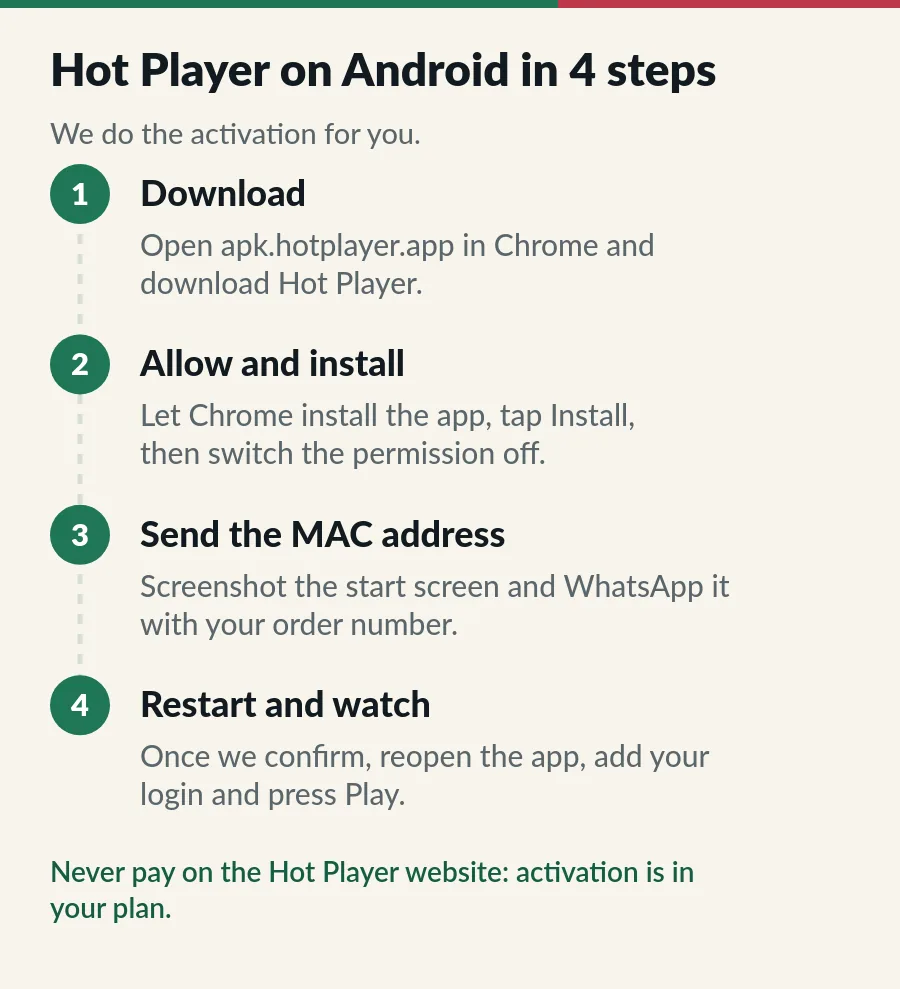
Every new Hot Player install shows a 30-day free trial, and the Hot Player website sells activations. Do not buy one: with an IPTV.sg plan the activation is included, and we do it for you. Our Hot Player IPTV page explains how it works on other screens.
A note on security: Singapore is one of the first countries where Google checks that apps come from verified developers, for Google Play and several phone makers’ stores since September 2026 and for every app from 2027. If your phone ever blocks Hot Player or warns that its developer is not verified, stop and message us rather than changing security settings, and use a Google Play player for IPTV on Android phone meanwhile. Google explains the change on its Android developer verification page.
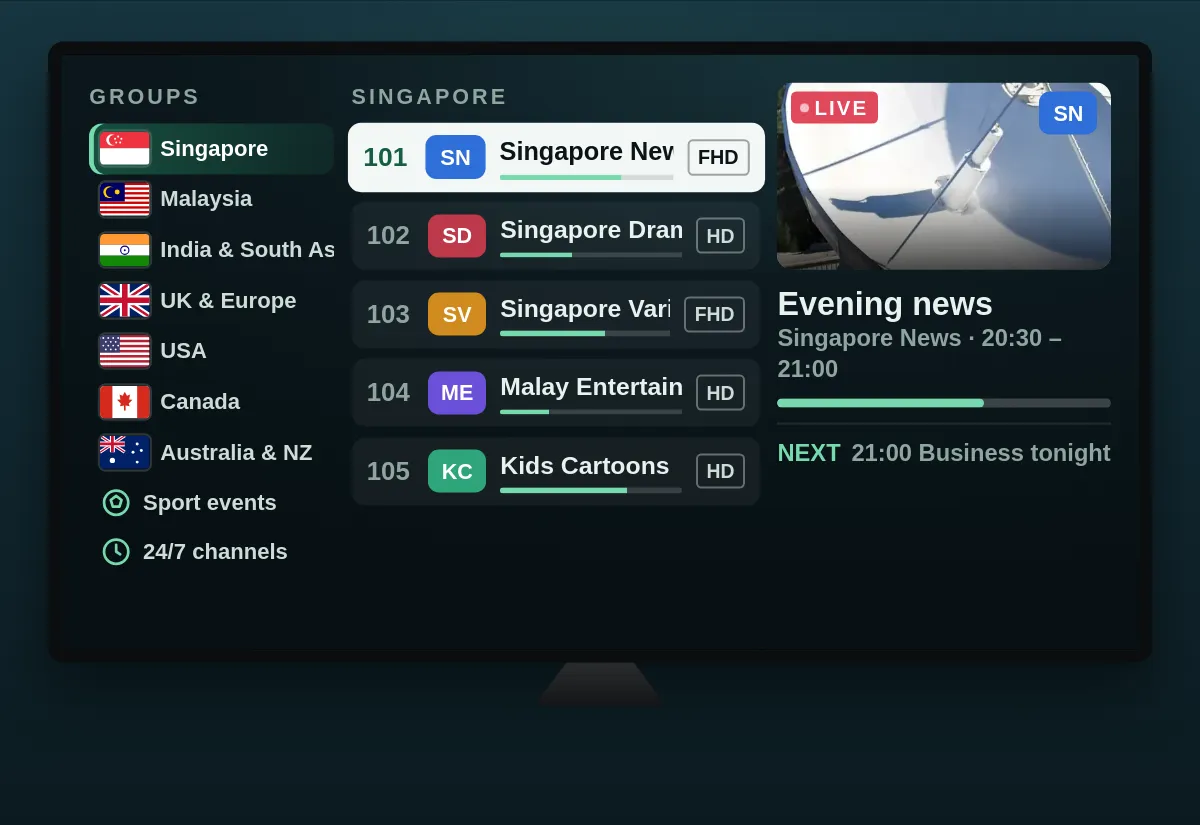
Rather not install anything from outside Google Play? These two players for IPTV on Android phone are well established and free. We checked their listings from Singapore on 12 November 2026.
| App | Made by | Signs in with | Cost |
|---|---|---|---|
| IPTV | Alexander Sofronov | M3U link; can add a TV guide | Free with ads; a paid Pro version removes them |
| VLC for Android | Videolabs | M3U link | Free, no ads, no in-app purchases |
IPTV, by Alexander Sofronov, is a simple player with over 10 million downloads. Add a playlist, paste your M3U link, and your channels appear as a grid, a list or tiles. It reads a TV guide too, and has a parental lock. The free version shows ads.
VLC for Android is the phone version of the free, open-source VLC player. Open the option for a network stream, paste the M3U link and VLC shows your channels as one long list, with no TV guide. It is perfect for checking that a channel plays, or as a backup. Our guide to the best IPTV player apps compares players for every other screen.
What about the big names? IPTV Smarters Pro did not appear in Google Play from Singapore, and apps with similar names come from other developers. TiviMate’s listing says it is made for Android TV, not phones or tablets; it shines on a TV box, as our guide to IPTV on Android TV explains. Kodi suits tablets and large phones, but its makers say it is not designed for smaller phones.
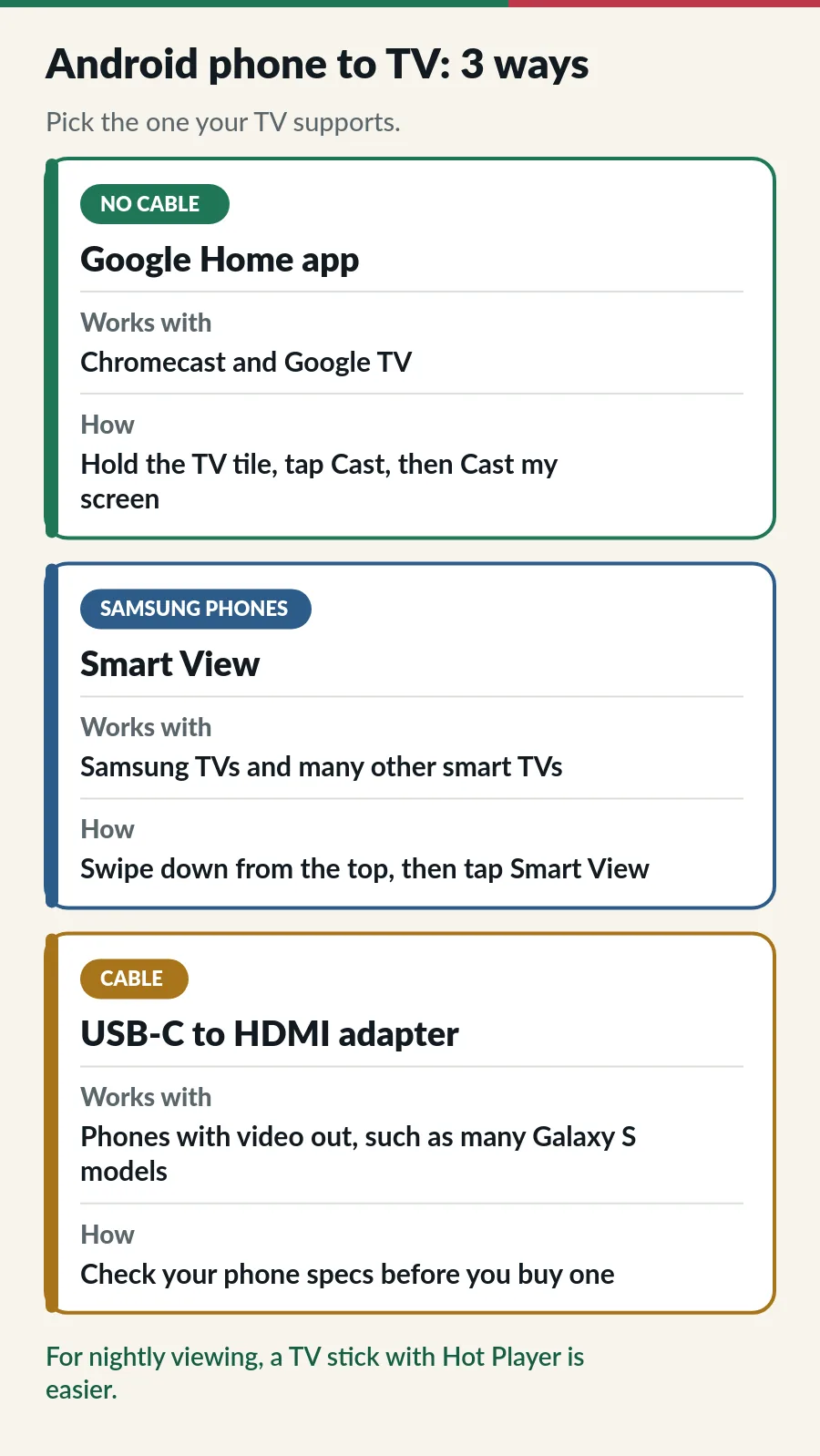
With a Chromecast or Google TV. Put the phone and the TV device on the same Wi-Fi, open the Google Home app, press and hold the TV’s tile, tap Cast, then Cast my screen. IPTV on Android phone now plays on the TV too; keep the phone charging for a long match.
With a Samsung phone. Swipe down from the top of the screen and tap Smart View, then pick your TV. It works with Samsung TVs and many other smart TVs on the same Wi-Fi.
With a cable. Some phones, including many Samsung Galaxy S models, send video through their USB-C port to a USB-C to HDMI adapter; many other phones cannot. Check your phone’s specifications for video output before you buy one.
IPTV on Android phone is great on the go, but for every evening a phone on the sofa is not the most relaxing remote. A Fire TV Stick or an Android TV box runs Hot Player and keeps your phone free: see IPTV on Firestick and the IPTV setup guide for each device.
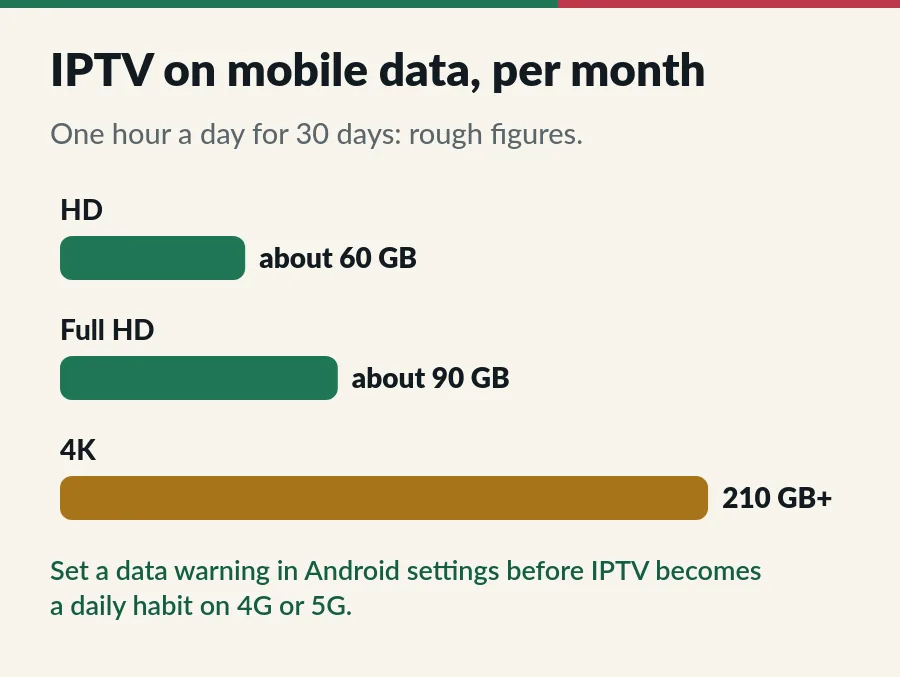
IPTV on Android phone uses far more data than social media or browsing. Every channel is a little different, but as a rough guide an hour uses about 2 GB in HD, 3 GB in Full HD and 7 GB or more in 4K. Over a month it adds up quickly:
A few small changes make IPTV on Android phone smoother. Menu names vary between phone makers, but every path starts in Settings.
Install Hot Player only from apk.hotplayer.app, and everything else from Google Play. Plenty of websites offer “IPTV APK” files, modified “premium unlocked” players or apps with free channels built in; they are a common way to put malware on a phone. When you have installed Hot Player, switch Chrome’s install permission off again, so nothing else can slip in the same way. Our IPTV APK guide explains how to check any app file before you install it.
Treat your login like a password: the username, password and M3U link give access to your plan. Do not post them in chat groups or paste them into websites that offer to “check” playlists. If you think they have leaked, message us and we help you secure your account. Each phone playing at the same time counts within your plan; our page on IPTV on multiple devices explains how.
| What you see | What to try |
|---|---|
| Install blocked | Switch on Allow from this source for Chrome, as in step 2. If Android says the developer is not verified, stop and message us. |
| “App not installed” | The download did not finish or space ran out. Free some space, delete the file and download it again. |
| Hot Player still shows the trial | Close it fully and open it again, or press Refresh. Still there? Send us the MAC address once more. |
| Login failed | Copy the username, password or M3U link again from our message, with no space at the end. |
| TV guide is empty | Refresh the guide in the app’s settings and give it a few minutes; see the EPG guide. |
| Stops with the screen off | Set the player’s battery use to Unrestricted, as in the settings above. |
| Picture stops and starts | Move closer to the router, use 5 GHz Wi-Fi or pick the HD version; see the IPTV buffering fixes. |
| Stops when another screen starts | Check how many screens your plan covers (Standard vs Premium). |
| Plan expired message | Renew before the end date to keep your login (see IPTV renewal). |
Still stuck? Work through the IPTV troubleshooting checks in order, or message us on WhatsApp with the app name and a screenshot. Our M3U playlist guide explains the link itself, and the Xtream Codes guide the username, password and server.
With IPTV on Android phone, Hot Player comes with your plan and the Google Play players are free; the channels come from your plan.
For the full experience, Hot Player: it has a TV guide, favourites and a PIN lock, and we activate it as part of your plan. For a quick start from Google Play, the free IPTV app by Alexander Sofronov, with VLC as a backup.
We could not find it there from Singapore. Hot Player’s own FAQ points Android phone users to apk.hotplayer.app, its download page: install it from there, and only from there.
It did not appear in Google Play when we searched from Singapore on 12 November 2026. Apps with similar names come from other developers. Use Hot Player or a Google Play player instead; our IPTV Smarters Pro guide has the background.
Its Google Play listing says it is designed for Android TV and not optimised for phones or tablets. Use it on a TV box instead; see IPTV on Android TV.
Yes, within your plan. Standard covers 1 to 3 devices on one account, all playing at once on a 3-device plan. Premium gives 1 to 3 separate accounts, each playing on one screen at a time.
Yes. IPTV on Android phone and tablet works the same way, and the bigger screen makes the TV guide easier to read. Kodi is also an option on a tablet.
Roughly 2 GB an hour in HD, 3 GB in Full HD and 7 GB or more in 4K. An hour a day in HD is about 60 GB a month, so watch on Wi-Fi when you can.
The same plan works there too, with App Store players instead: see IPTV on iPhone and iPad.
Guide
Google Play first, the Downloader route when you need it.
Guide
Six player apps compared by device, sign-in, TV guide and price.
Guide
Pick an App Store player, sign in and watch on your iPhone, iPad or TV.
Guide
Developer options, Downloader, your player and sign-in.
Message us on WhatsApp with your order number and the MAC address from Hot Player, and we activate it for your phone.