Page
My IPTV
MyIPTV Player, look-alike apps and your login.
App guide
Several apps share the “My IPTV” name, and the right one depends on your screen. Here is how to install My IPTV on Windows, Xbox, iPhone, Android, Fire TV and smart TVs, how to sign in and how to stay safe.
People search “how to install My IPTV” for many different apps, because several players share that kind of name. Whatever you install, three things never change: the app has no channels of its own, you need a subscription and its login, and the app should come from an official store. Our My IPTV page explains the different apps and boxes behind the name.
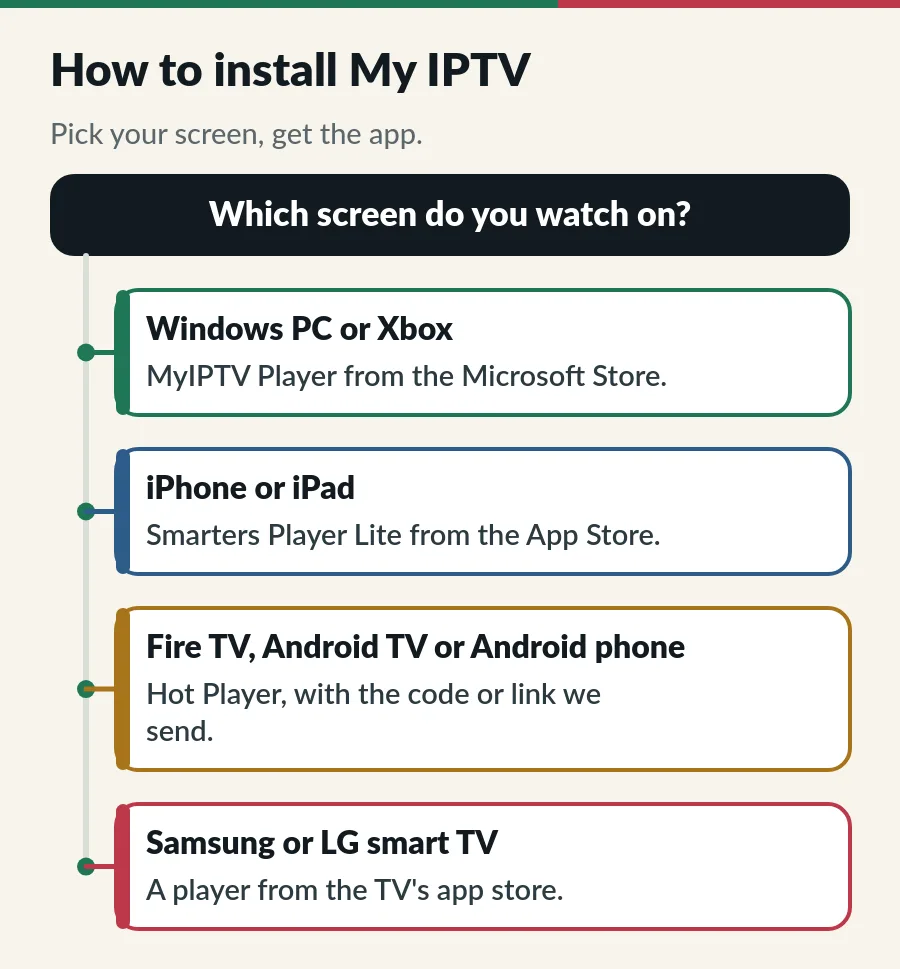
| Your screen | App | Where to get it |
|---|---|---|
| Windows PC or Xbox | MyIPTV Player | Microsoft Store |
| iPhone or iPad | Smarters Player Lite | App Store |
| Android phone or tablet | Hot Player | The link or app code we send |
| Fire TV Stick | Hot Player | Downloader app + the code we send |
| Android TV / Google TV | A player from Google Play | Google Play first |
| Samsung or LG TV | A player from the TV store | Apps on the TV |
Search the Microsoft Store for MyIPTV Player and install it, then add your M3U playlist link and TV guide link under Settings. We send both links on WhatsApp. The full walk-through, with pictures, is in our MyIPTV Player on Windows guide.
On iPhone and iPad, install Smarters Player Lite from the App Store and sign in with Xtream Codes: a server URL, a username and a password (IPTV Smarters Pro guide). On Android phones and tablets, Hot Player is the easiest choice, and its activation is included with your plan; install it with the link we send (Hot Player IPTV).
Apps sign in in one of three ways: with Hot Player, we activate the app for you from the details on its start screen; most other apps take an Xtream Codes login (server URL, username, password); and some want one M3U link. Our guides to Xtream Codes and M3U playlists explain both, and the IPTV setup guide covers every device.
Sites offering a “My IPTV APK” or a “hacked” version usually bundle old or modified apps, often with adverts or worse. Stick to the Microsoft Store, the App Store, Google Play, your TV’s store, or the app code we send. If an app asks you to buy channels inside it, it is not the player we mean. Comparing apps? See the best IPTV player apps.
Installed the app? Now you need the login that goes into it. Here is where to get one.
The players we suggest are free to download; MyIPTV Player is listed as free in the Microsoft Store. The channels come from your subscription.
The one made for your screen: MyIPTV Player on Windows and Xbox, Smarters Player Lite on iPhone, Hot Player on TV devices and Android.
Yes. Install the app on each screen; how many can play at once depends on your plan.
Send us your TV model on WhatsApp. If your TV has no compatible app, a Fire TV Stick or an Android TV box is the easy fix.
Page
MyIPTV Player, look-alike apps and your login.
Guide
Add your playlist and TV guide on Windows or Xbox.
Guide
Six player apps compared by device, sign-in, TV guide and price.
Page
From login to first channel on every device.
Send us your device model and a photo of the screen; we guide you on WhatsApp.