Guide
IPTV on Samsung Smart TV
Install a player from Apps, send us the MAC address and watch.
Device guide
IPTV on LG Smart TV takes about ten minutes: install a player from the TV’s own app store, open it and activate it. LG TVs run webOS, so the steps differ from Android devices, and some menus have moved over the years. This guide shows where everything is on your model.
LG Smart TVs have run webOS since 2014. OLED, QNED, NanoCell and UHD models share the same kind of app store, so these steps for IPTV on LG Smart TV work on each of them; only a few menu names have changed over the years.
Most models from recent years can run a compatible player; very old ones may not list one. The model code is on the sticker on the back of the TV and in its settings, under Support or General. Send it to us on WhatsApp and we confirm before you order.
One thing that does not work: Android app files (APKs). LG says its TVs cannot install Android apps, so the Downloader method from our IPTV on Firestick guide only works on a stick or box plugged into the TV, never on the TV itself.
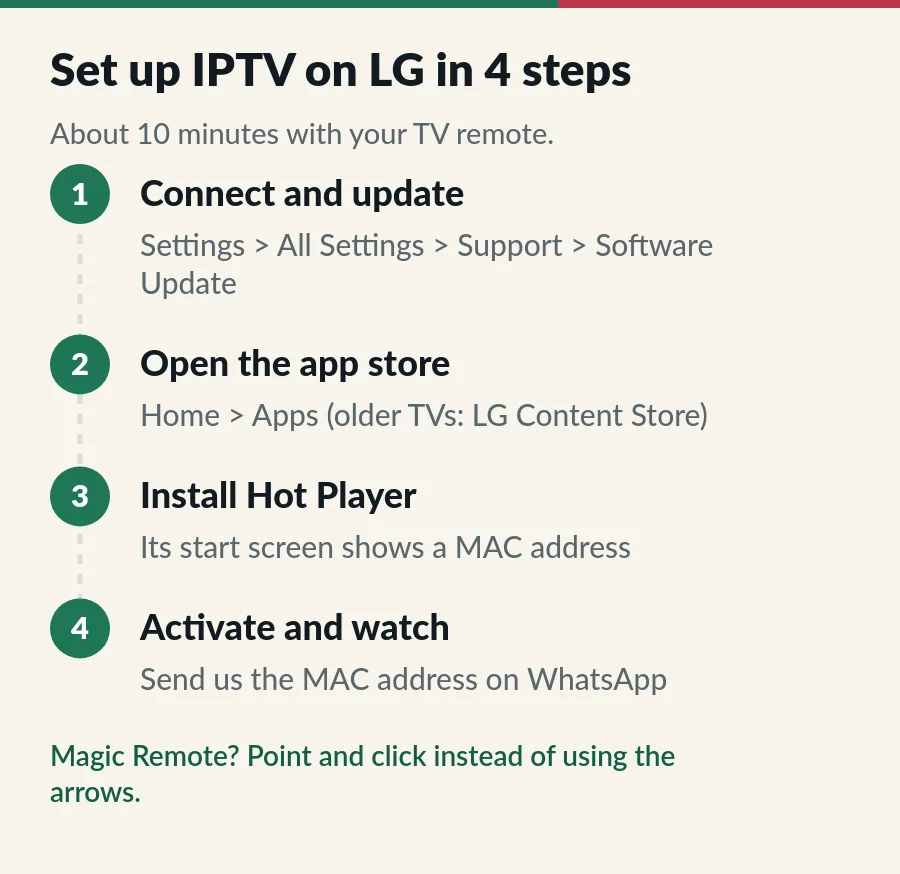
Connect the TV to the internet, by cable if the router is close; LG Smart TVs have a LAN port at the back. Then press the Settings button on the remote, choose All Settings > Support > Software Update and select Check for Updates. On 2019 and older models, updates sit under All Settings > General > About This TV.
Press the Home button and open Apps; older models call it LG Content Store. Select the search icon and type Hot Player. If the store asks you to sign in to an LG account or accept its terms first, do that; the account is free. App lists differ by model year and country, so if Hot Player is not there, read the options further down.
Select Install, wait a moment, then open the app. To keep it handy, press Home, choose Edit Apps List (a pencil icon on newer models) and move Hot Player to the front. The first time it opens, Hot Player shows a MAC address on its start screen.
Send us the MAC address and your order number on WhatsApp or by email. We activate Hot Player for that TV and confirm; then you open the app and your channels load. That is all it takes: IPTV on LG Smart TV, ready to watch. Players other than Hot Player skip this step and ask for your username, password and server URL instead.
LG has renamed and moved a few menus since 2019, which is why instructions online often do not match the screen in front of you. These are the three you need for IPTV on LG Smart TV:
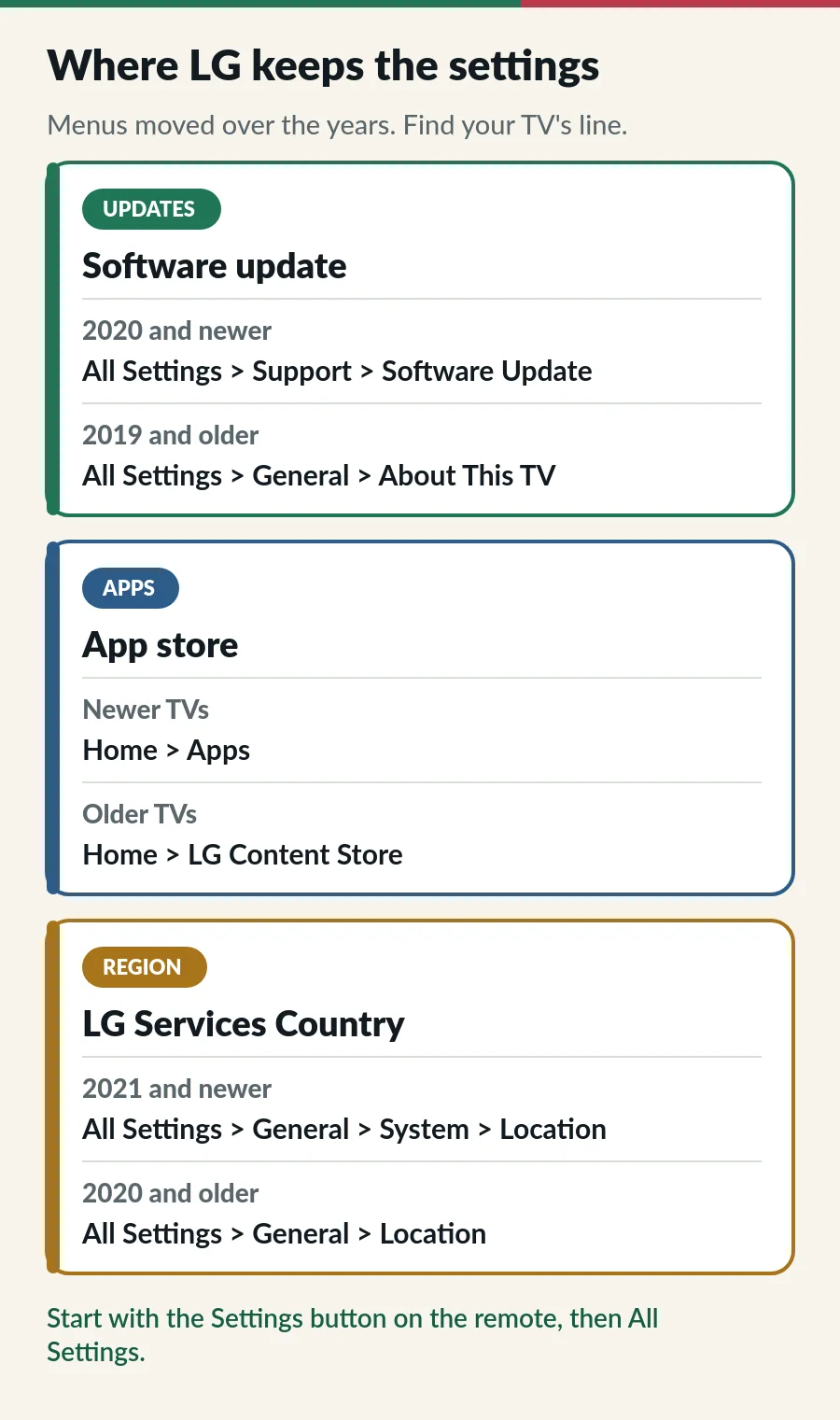
Not sure how old your TV is? Send us the model code from the back sticker and we tell you which menus it has and how well IPTV on LG Smart TV runs on it.
Hot Player is our suggestion because it is included with your plan and we activate it for you. Other players also run on many LG models:
| App | How you sign in | Cost |
|---|---|---|
| Hot Player | MAC address, activated by us | Included with every IPTV.sg plan |
| IBO Player | M3U link or Xtream Codes | Trial, then a paid activation |
| IPTV Smarters Pro | Xtream Codes | Free, but not listed for every TV |
Store listings depend on the TV’s model year and its LG Services Country, and they change as apps come and go. Stick to the LG store itself: a website that offers to “unlock” a player for your TV is not a place to type your login. For a wider comparison, see the best IPTV player apps.
| Problem | Fix |
|---|---|
| Hot Player is not in the store | Update the TV software, check the LG Services Country, then search again. Still missing? Ask us which player suits your model, or use a Fire TV Stick. |
| Hot Player opens without a MAC address | It needs a connection to show one. Check the network in the settings, then close the app fully and open it again. |
| Hot Player still says it is not activated | One wrong character is enough. Check the address in your message against the screen; the letters only go from A to F. |
| “This app will now restart to free up more memory” | The TV is short of memory. Close other apps and unplug the TV for a minute. If it keeps happening, a streaming stick takes the load off the TV. |
| Buffering | Use a cable or 5 GHz, then follow our IPTV buffering fixes. |
| TV guide times are wrong | Set the date and time to automatic and the time zone to Singapore, then refresh the guide in the app. More in our EPG guide. |
Older LG TVs have less memory and an older webOS, so apps open slowly and the store may not list a current player. A Fire TV Stick or an Android TV box in a free HDMI port fixes both: it brings its own remote, its own app store and more memory. Our IPTV on Firestick guide and IPTV on Android TV guide cover the setup.
Any of our plans works for IPTV on LG Smart TV, so pick by channels and by how many people watch.
Only if it is listed in your TV’s store, which depends on the model and country. If it is missing, use Hot Player, which is included with your plan, or a Fire TV Stick.
The channels live in the player app, not in the TV, so you hide them there: most players let you hide categories or build a Favourites list. Want fewer channels from the start? Ask for a custom channel list with only your countries.
LG’s own recording, on models that have it, works with channels from the TV’s aerial, not with apps. Any recording for IPTV comes from the player app and varies by app and device. Films and series on demand need no recording: you start them whenever you like.
Try three things in order: update the TV software, do a full restart by unplugging the TV for a minute, then delete and reinstall the app. LG also suggests testing on another network, such as a phone hotspot. If it still fails, message us with your TV model and app.
Yes. IPTV on LG Smart TV works the same way on OLED, QNED and NanoCell models, because they all run webOS with the same kind of app store.
Guide
Install a player from Apps, send us the MAC address and watch.
Guide
Google Play first, the Downloader route when you need it.
Page
The player included with every IPTV.sg plan.
Page
From login to first channel on every device.
Hot Player comes with every plan, from S$15 a month. Send us the MAC address after you order and we switch it on.