Guide
IPTV on Firestick in 5 steps
Developer options, Downloader, your player and sign-in.
Device guide
IPTV on Android TV takes a few minutes when the player is in Google Play: search, install, sign in. When it is not, the free Downloader app installs it with a code we send you. This guide covers both routes on Google TV and older Android TV menus, and the settings that keep the picture smooth.
Google TV is the newer home screen that Google puts on top of Android TV. Underneath, both are the same system, with Google Play and the same player apps, so IPTV on Android TV works the same way on either one.
The quickest way to tell them apart: Google TV opens on a page called For you, with tabs along the top, while the older Android TV opens on rows of apps. You meet both on many Sony, TCL and Xiaomi TVs and on streaming boxes. Some TV makers use other systems altogether, so check the settings if you are not sure.
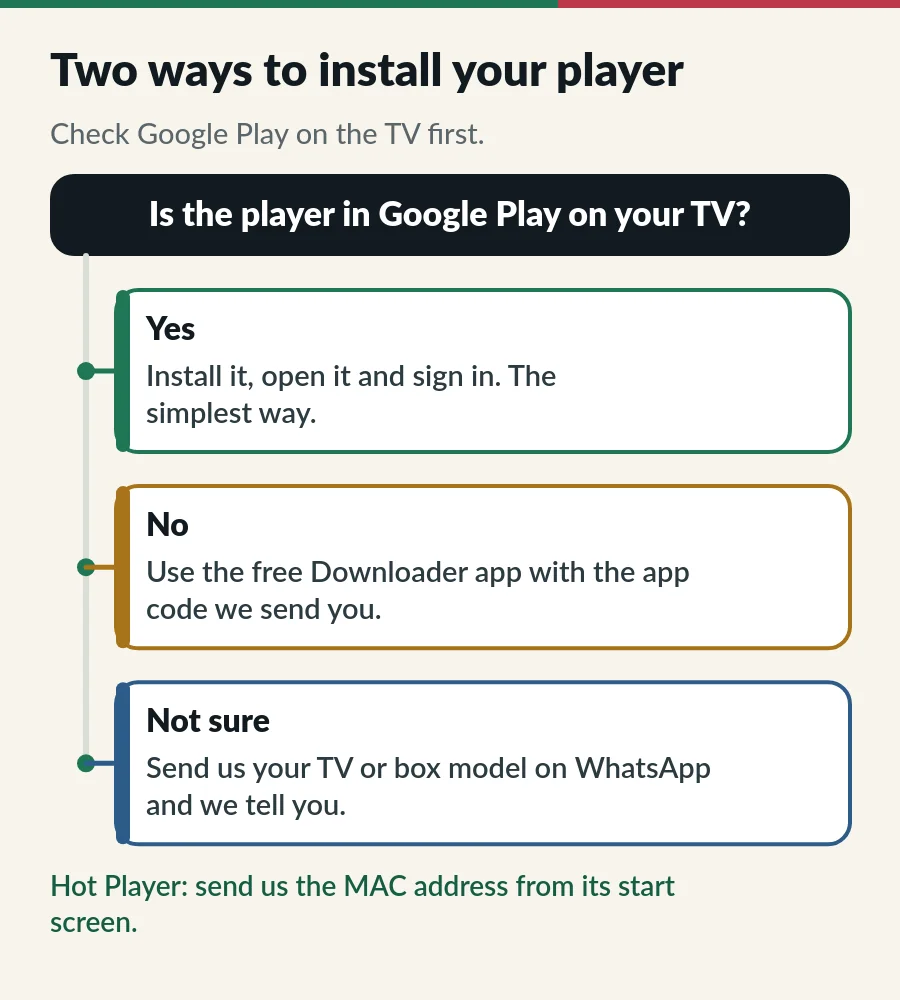
Connect the TV or box to the internet. Most Android TVs and many boxes have a network port, and a cable gives the steadiest picture. Then check for a system update: on most models it is under Settings > System > About, although some brands put it elsewhere.
On Google TV, open the Apps tab and choose Search for apps; on older Android TV, open the Google Play Store app. Type Hot Player, or the name of the player you want. If it is not listed for your device, use the Downloader route below.
Select Install, then Open. The first time Hot Player opens, it shows a MAC address on its start screen; most other players open on a sign-in screen.
For Hot Player, send us the MAC address and your order number on WhatsApp or by email, and we activate it for that device. For other players, type your username, password and server URL; our IPTV Smarters Pro guide walks through that kind of sign-in. That is it: IPTV on Android TV, ready to watch.
Some players are not in Google Play, or not for every device. The free Downloader app, which is in Google Play, installs them from a short app code. It adds about five minutes:
Google Play Protect may warn you about an app from outside Google Play. Only go ahead for an app you got from us or from its developer: Downloader is a browser, so it can fetch anything. Our IPTV APK guide lists the safe sources for each player.
Singapore is also one of the first countries where Google checks that apps come from verified developers: since September 2026 for apps from Google Play and several device makers’ stores, and for every app from 2027. If your TV blocks an app or warns that its developer is not verified, stop there and message us rather than changing security settings; we will suggest a player for IPTV on Android TV that installs from Google Play. Google explains the change on its Android developer verification help page.
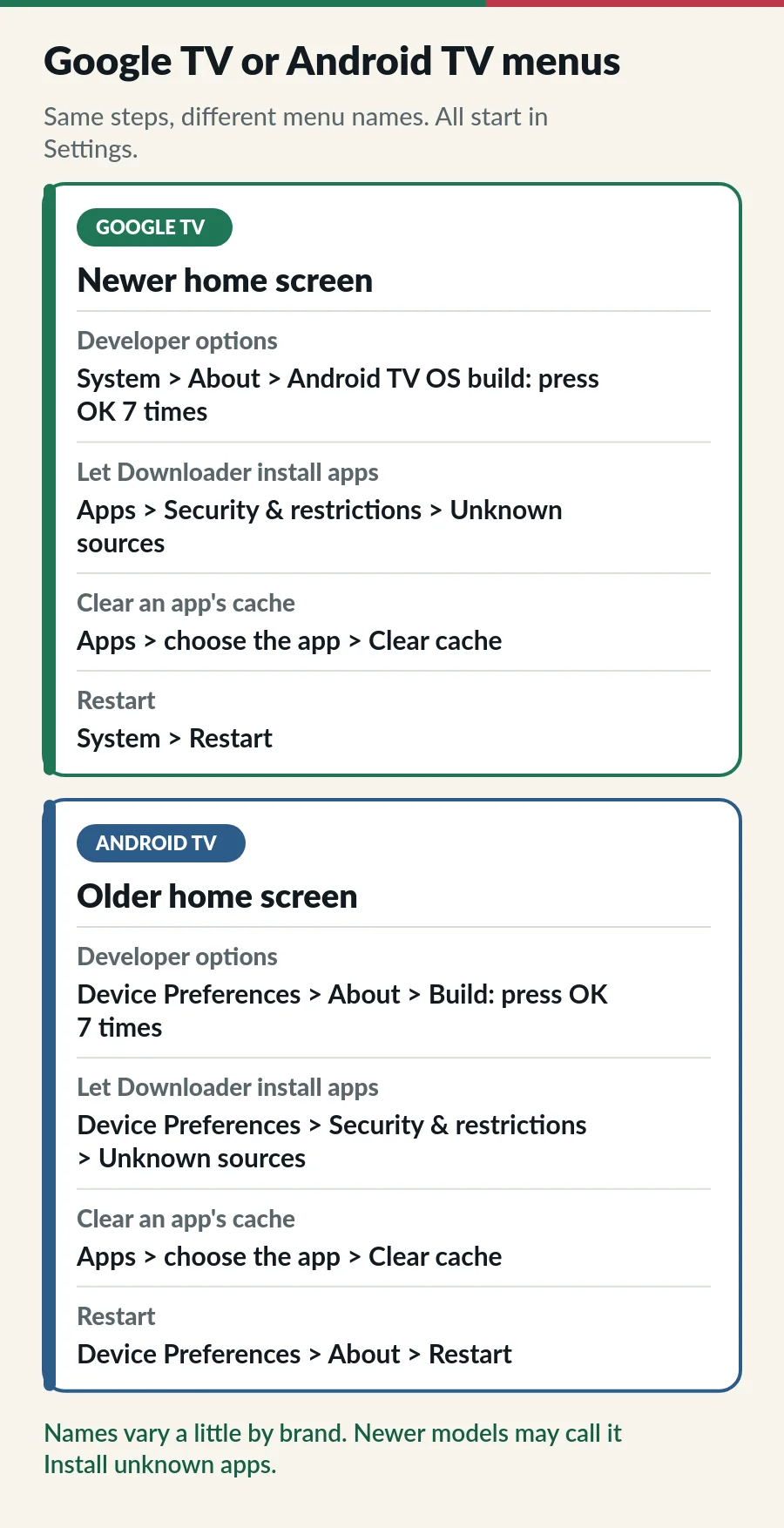
Brands such as Sony, TCL and Xiaomi add their own touches, so a menu may sit one level higher or lower. Every path starts in Settings, at the top right of the home screen; on some Google TV models you reach it through your profile picture.
Choosing a box or stick for IPTV on Android TV? Three things matter more than the brand:
Skip boxes sold with channels already loaded: they tend to stop working without warning, and there is nobody to call when they do. Our guide to what an IPTV box is lists six checks before you buy one.
| Problem | Fix |
|---|---|
| The player is not in Google Play | Use the Downloader route with our app code, or ask us which player suits your device. |
| No Unknown sources option | Turn on Developer options first, then look for Install unknown apps under Apps or Security. |
| “App not installed” | The download did not finish or space ran out. Free some space and try the code again. |
| The TV blocks the app or asks you to wait | Stop and message us. We suggest a player from Google Play instead. |
| Buffering | Use a cable or 5 GHz, then follow our IPTV buffering fixes. |
| TV guide times are wrong | Set the date and time to automatic and the time zone to Singapore, then refresh the guide in the player. More in our EPG guide. |
IPTV on Android TV works the same on both plans, so choose by channels and screens.
Not always. A box that runs Android TV or Google TV has Google Play and a menu made for the remote. Some generic boxes run a phone version of Android instead, which works less well with a remote and gets fewer updates.
Yes. TiviMate is made for Android TV and is in Google Play. The free version covers the basics and a paid upgrade adds extras. Sign in with Xtream Codes or an M3U link. Our TiviMate IPTV player guide has the steps.
No. When we checked from Singapore on 31 October 2026, it was no longer listed there. Use Hot Player or TiviMate instead; our IPTV Smarters Pro guide has the details.
Open Settings > System > About and look for System update. Some brands put it under Device Preferences > About instead.
No. Any Android TV or Google TV device with Google Play runs a player app, and so do Smart TVs, Fire TV Sticks, phones and computers.
Standard covers 1, 2 or 3 devices on one account; Premium gives each viewer their own account. See IPTV on multiple devices.
Yes, within your plan. Hot Player runs on Android phones as well, installed from its maker’s download page; our guide to IPTV on Android phone shows the steps and two Google Play alternatives.
Guide
Developer options, Downloader, your player and sign-in.
Guide
The Apps store, MAC activation and the LG menus by model year.
Guide
Six player apps compared by device, sign-in, TV guide and price.
Page
From login to first channel on every device.
Plans from S$15 a month, with Hot Player included. Your login arrives by email and WhatsApp.