Guide
IPTV on Firestick in 5 steps
Developer options, Downloader, your player and sign-in.
Player guide
An IPTV APK is the install file of a player app for Android phones, Android TV and Fire TV. Here is when you need one, where to get a safe copy, how to install it in four steps, and the “free channels” APKs to stay away from.
APK stands for Android Package, the file format Android uses to install apps; Wikipedia compares it to a software package on a computer. When you install an app from Google Play, the store fetches the package and installs it for you. Installing an APK file yourself, from outside a store, is called sideloading.
An IPTV APK is simply that file for an IPTV player: an app that turns a login into a channel list, a TV guide and a picture. The player does not come with channels. Everything you watch comes from your IPTV service; with IPTV.sg, from the login we send by email and WhatsApp after you order.
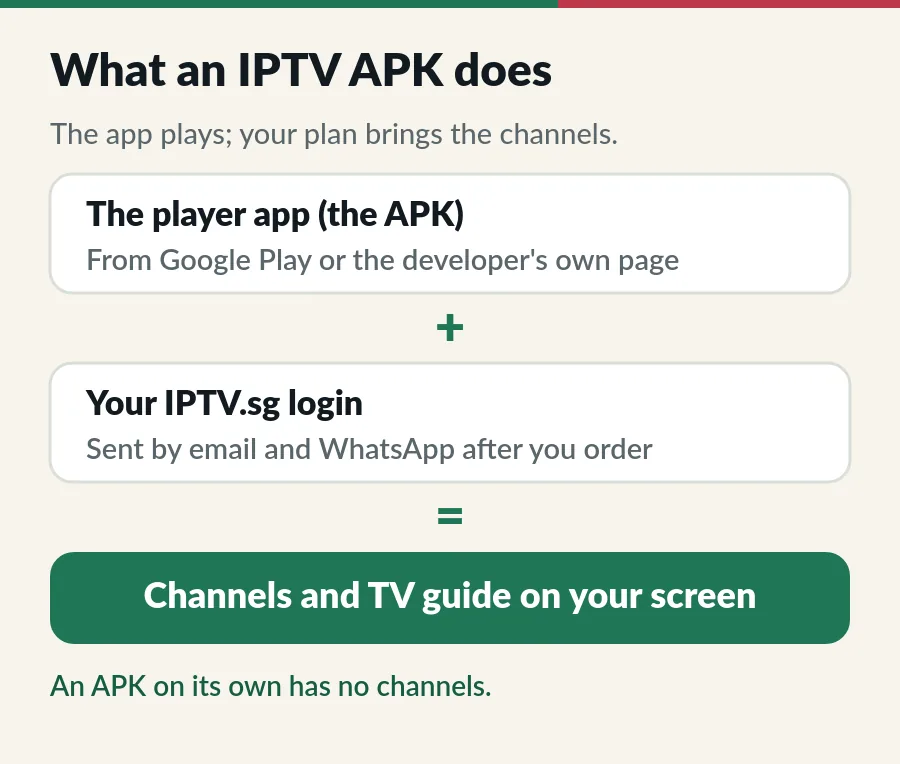
That is why the “best IPTV APK” question has a simple answer: a well-known player from its real developer, plus a working plan. Our list of the best IPTV player apps compares six players by screen, sign-in and price, and our plans and prices show what each plan includes.
Only some screens use APK files at all, and on several of them the app store is the easier route. Find your screen first:
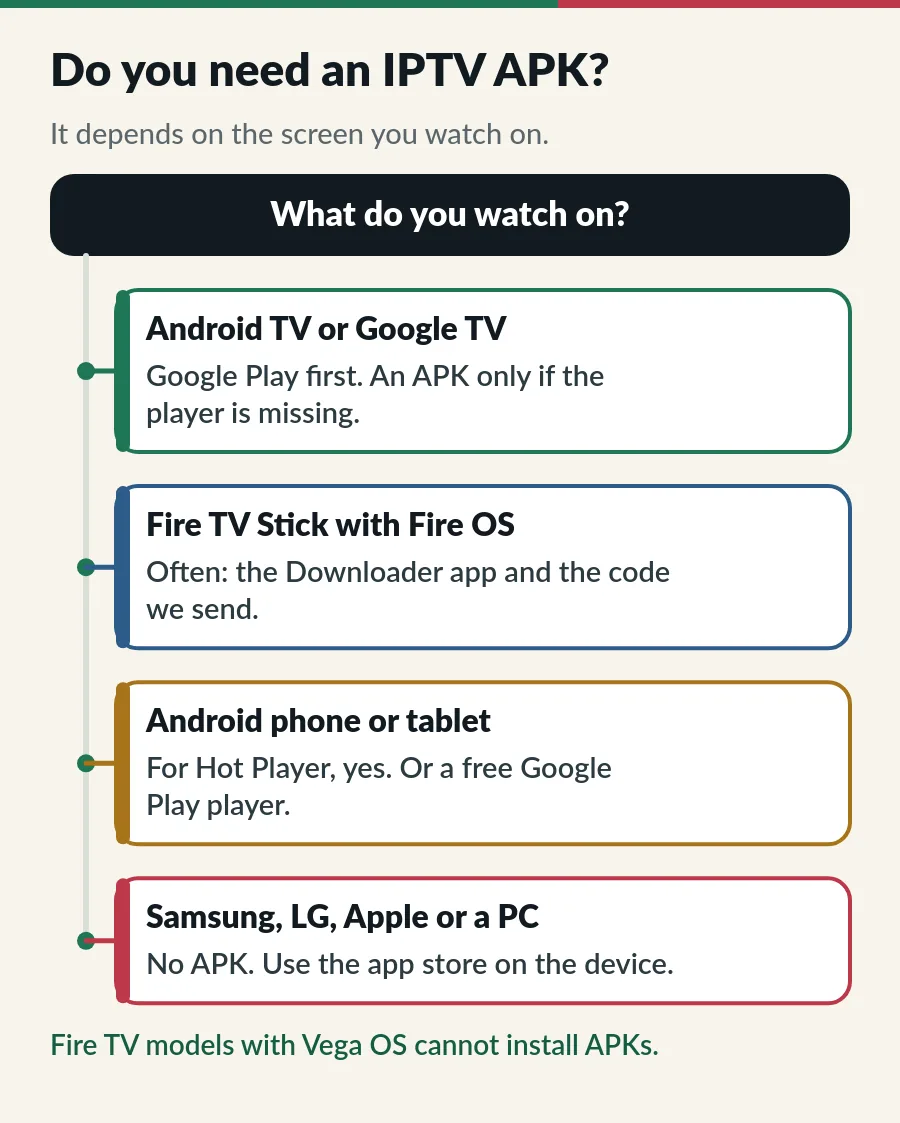
| Your screen | APK? | What to do |
|---|---|---|
| Android TV or Google TV (many Sony, TCL and Xiaomi TVs, Android TV boxes) | Rarely | Search Google Play on the TV first; the Downloader route is there if the player is missing (IPTV on Android TV). |
| Fire TV Stick with Fire OS | Often | Hot Player and TiviMate install with the Downloader app and a short code (IPTV on Firestick). |
| Fire TV with Vega OS | No | Vega OS only installs apps from the Amazon Appstore. |
| Android phone or tablet | For Hot Player | Hot Player comes from apk.hotplayer.app; VLC and other players are in Google Play (IPTV on Android phone). |
| Samsung or LG smart TV | No | These TVs cannot install APKs. Install Hot Player from the TV’s own store (Samsung, LG). |
| Apple devices or a Windows PC | No | Use the App Store or a Windows player (iPhone and iPad, Apple TV, PC). |
An APK is only as trustworthy as the place it comes from. A file from the developer is the same app a store would give you; the same name on a download site can be an old copy, a modified copy or something else entirely. Our picks, checked from Singapore in November 2026:
| App | Where to get it | Good to know |
|---|---|---|
| Hot Player | Phones: apk.hotplayer.app, the address on Hot Player’s own website. Fire TV and Android TV: the Downloader app with the code we send. | Activation is included in your plan, so never pay for it on the Hot Player website (how it works). |
| TiviMate | Android TV: Google Play. Fire TV: Downloader code 272483 or tivimate.com/apk, both from TiviMate’s own website. | Free; Premium is an optional upgrade sold by TiviMate. |
| VLC for Android | Google Play, the Amazon Appstore, F-Droid, or the APK package on VideoLAN’s own website. | Free and open source; plays an M3U link, without a TV guide. |
| Kodi | Google Play, listed by the Kodi Foundation. | Free; plays IPTV with the PVR IPTV Simple Client add-on. |
| Downloader | Google Play on Android TV; Find on the Fire TV home screen. | By AFTVnews. A small browser that fetches APKs from an address or a short code. |
Downloader is not an IPTV app or a store: it is a browser, with more than 50 million installs from Google Play, that fetches whatever address or code you type. So it is only as safe as the code you give it: use the codes from the developer’s website or our welcome message, and nothing else.
Not sure which player suits your screen? Our IPTV setup guide lists the right app for each device. The TiviMate IPTV player guide covers the TiviMate route in detail.
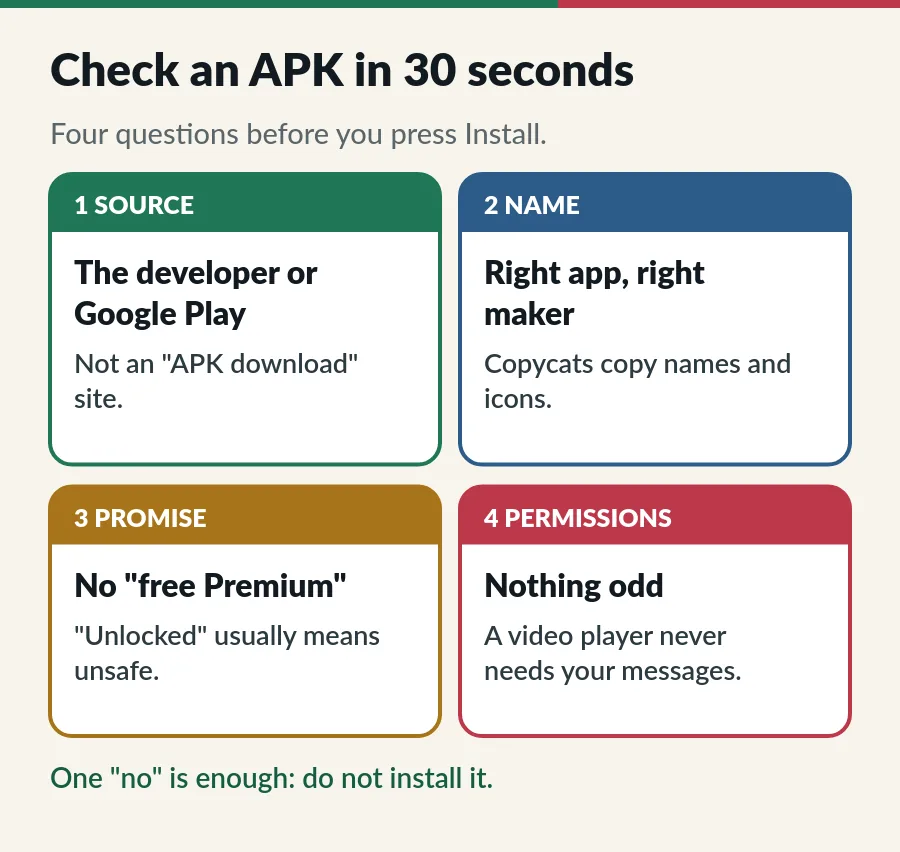
Keep Google Play Protect on too. It is on by default, and Google says it checks your device for harmful apps from other sources as well as from Google Play. On a phone, open the Google Play Store app, tap your profile icon, then Play Protect. If it warns you about an app, do not install it. Google explains what it does on its Play Protect help page.
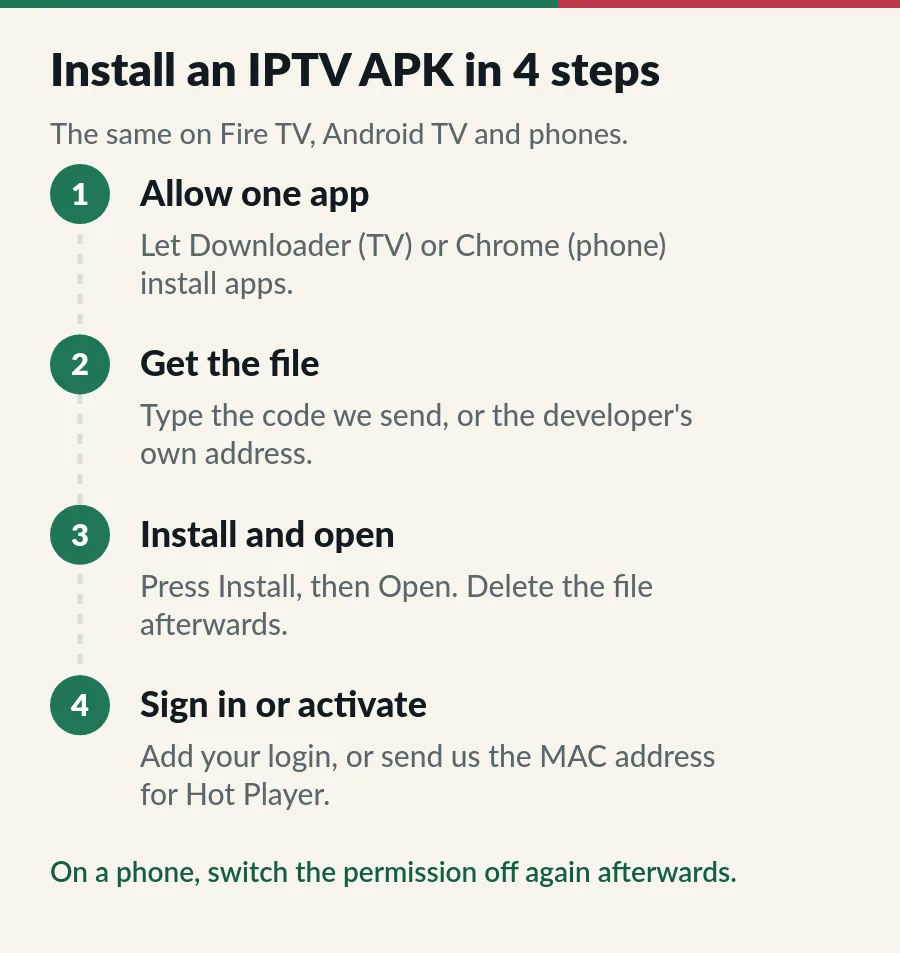
The pattern is the same on every Android screen; only the menu names change. Here are the four steps, then the exact menus for each device.
Two kinds of login work in most players: our guides to Xtream Codes and the M3U playlist explain both.
Unlock Developer options (Settings > My Fire TV > About, then press select seven times on the device name), install Downloader from Find, and switch it on under Developer options > Install unknown apps. Then type the code into Downloader and choose Install.
Search Google Play on the TV first. If the player is missing, install Downloader from Google Play, allow it under Settings > Apps > Security & restrictions > Unknown sources (Install unknown apps on newer models), type the code and choose Install.
Open the developer’s address in Chrome, such as apk.hotplayer.app, and accept Chrome’s file warning only for an address you trust. Tap the download, then Settings, switch on Allow from this source and tap Install. Afterwards switch it off under Settings, Apps, Special app access, Install unknown apps.
Singapore is one of the first countries where Google checks that apps come from verified developers: since September 2026 for apps from Google Play and several device makers’ stores, and for every app from 2027. If a TV or phone blocks an IPTV APK because its developer is not verified, stop there and message us rather than changing security settings; we will suggest a player that installs normally. Google explains the change on its Android developer verification page.
Plenty of websites offer “IPTV APK” downloads, and they are a common way to put malware on a device. Even when they work for a while, they are old or modified copies that never update, and they see every login you type in.
Our guide to a lifetime IPTV box or app looks at “lifetime APK” offers in more detail. And treat your login like a password: never paste it into sites that offer to “check” playlists, and message us if you think it has leaked. Each screen playing at once counts within your plan (IPTV on multiple devices).
| What you see | What to try |
|---|---|
| “Install blocked” or “not allowed to install unknown apps” | Allow the app you downloaded with (Downloader or Chrome), as in step 1. |
| Developer not verified | Stop and message us; do not change security settings. We suggest a player that installs normally. |
| “App not installed” | Free some space, delete the file and download it again. A copy from another source already installed? Remove it first. |
| “There was a problem parsing the package” | The file is damaged or needs a newer Android version. Download it again from the developer, or ask us for a player that suits your device. |
| Play Protect warns about the app | Do not install it. Check where the file came from, or ask us for the right code. |
| App opens but shows no channels | The app has none of its own: add your login from our message. |
| Plan expired message | Renew before the end date to keep your login (IPTV renewal). |
Still stuck? Work through the IPTV troubleshooting checks, or message us on WhatsApp with the device, the app name and a photo of the screen. We cannot see inside the app, but we can check your login and send the right code.
An IPTV APK is only the player; the channels, the login and Hot Player activation come with your IPTV.sg plan.
The install file of an IPTV player app for Android phones, Android TV and Fire TV. It plays the login from your IPTV plan; it has no channels of its own.
For most screens, Hot Player: it has a TV guide and favourites, and we activate it as part of your plan. On Android TV, TiviMate is a favourite for its guide, and VLC is a free backup on almost any Android screen.
There is no special Singapore app, and you do not need one. Any good player works in Singapore with your IPTV.sg login. Set your device’s time zone to Singapore so the TV guide shows the right times.
Yes, when it comes from the app’s developer or with the code we send, and Play Protect stays on. It is risky from download sites, and with modified or “unlocked” apps.
Google plans to check every app on certified Android devices from 2027. If a player is ever blocked because its developer is not verified, message us and we suggest one that installs normally.
Guide
Developer options, Downloader, your player and sign-in.
Guide
Google Play first, the Downloader route when you need it.
Guide
Install Hot Player and let us activate it, or use a free Google Play player.
Guide
Install it on Android TV or Fire TV, add your login and see if Premium is worth it.
Message us on WhatsApp with your order number and the device you use, and we send the right code and login.