Guide
Best IPTV player apps
Six player apps compared by device, sign-in, TV guide and price.
Player guide
The free PVR IPTV Simple Client add-on turns Kodi into a full IPTV player with a guide grid. Here is how to install it, where your two links go, how to load fewer channels on small boxes and how to fix the usual problems.
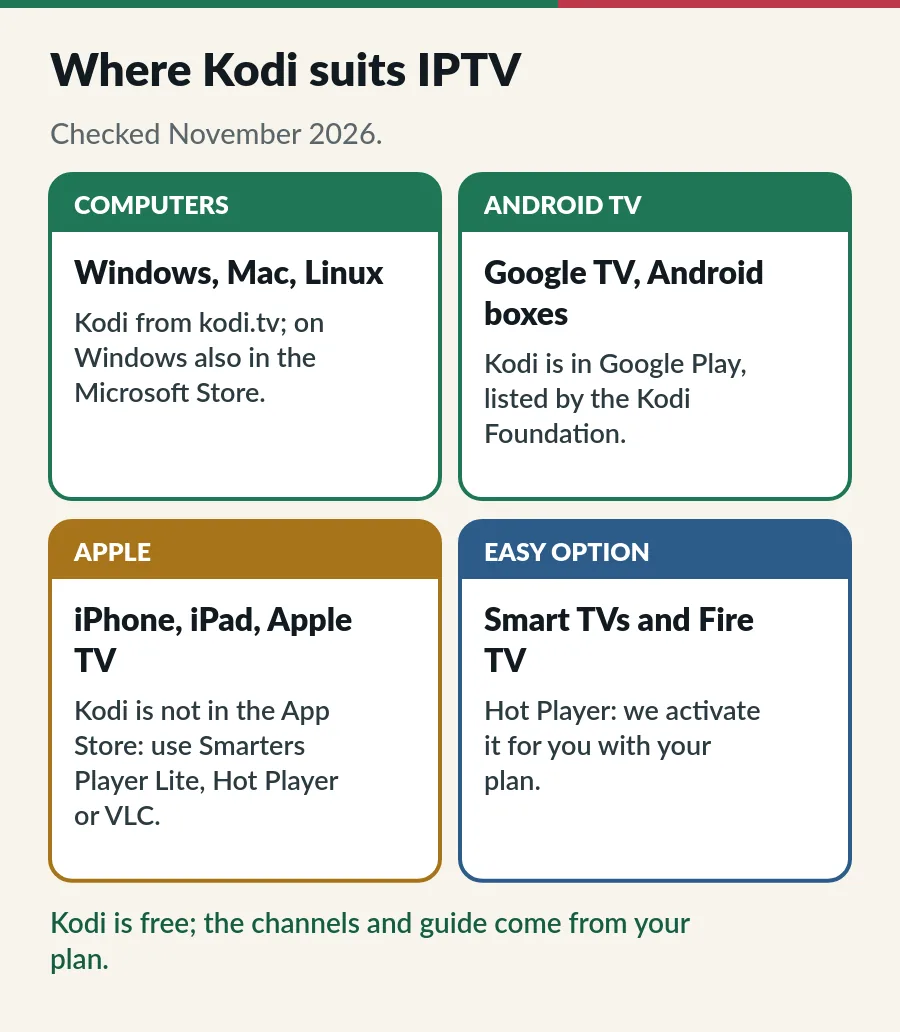
Kodi is a free, open-source media centre run by the non-profit Kodi Foundation. On its own, Kodi has no TV channels: its TV section needs an add-on that brings them in. PVR IPTV Simple Client is that add-on for IPTV. It reads an M3U playlist for the channels and an XMLTV file for the guide, and Kodi shows both in its own TV menu with a guide grid.
The IPTV Simple Client is free, open source and sits in Kodi’s own add-on repository, so there is nothing to download from other websites. Like every player, it has no channels of its own. Everything you watch comes from your plan; with IPTV.sg, from the two links in the message we send after you order. Our guides to the M3U playlist and to EPG in IPTV explain what is inside each link.
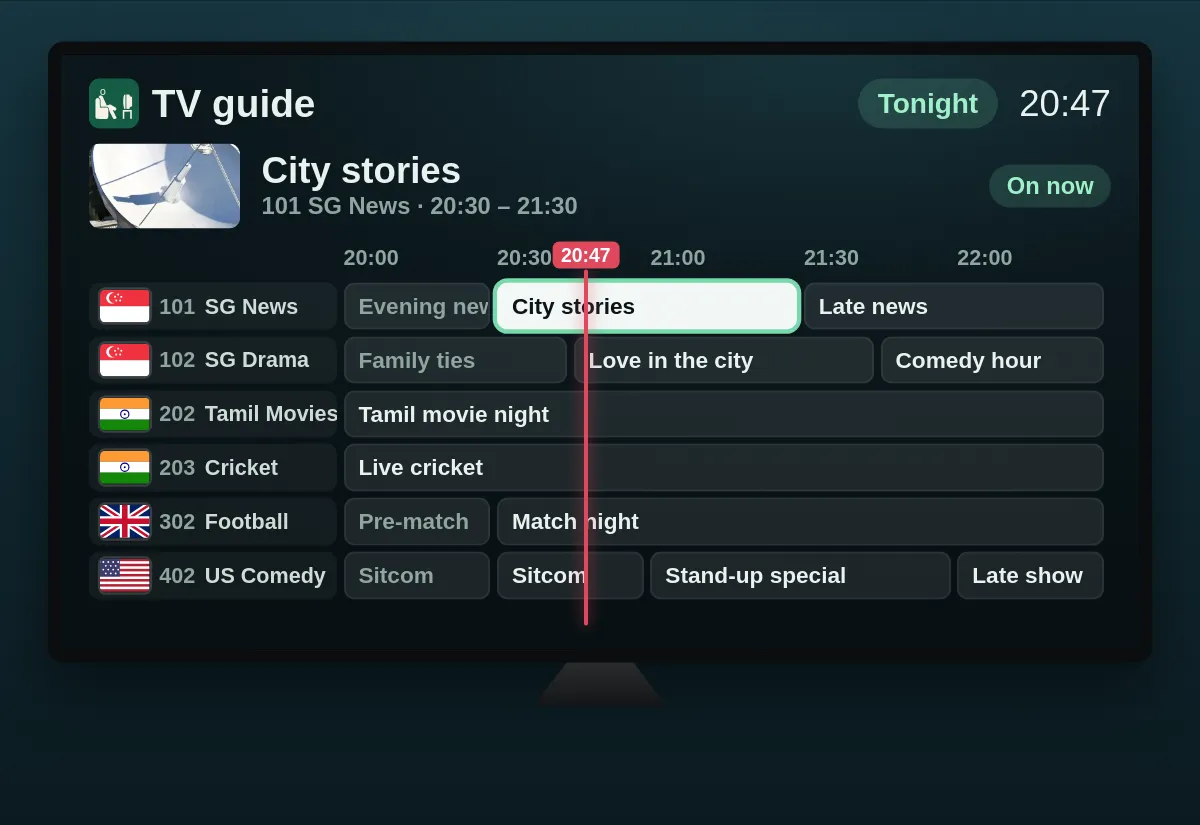
Kodi takes the most steps to set up, but rewards you with a large, tidy guide. VLC opens the same playlist faster but shows one long list with no guide, and Hot Player is the easiest choice because we activate it for you. Our list of the best IPTV player apps compares six players side by side.
Kodi playing a channel counts as one screen in your plan, the same as any other player. Our guide to IPTV on multiple devices explains how screens and accounts work on Standard and Premium.
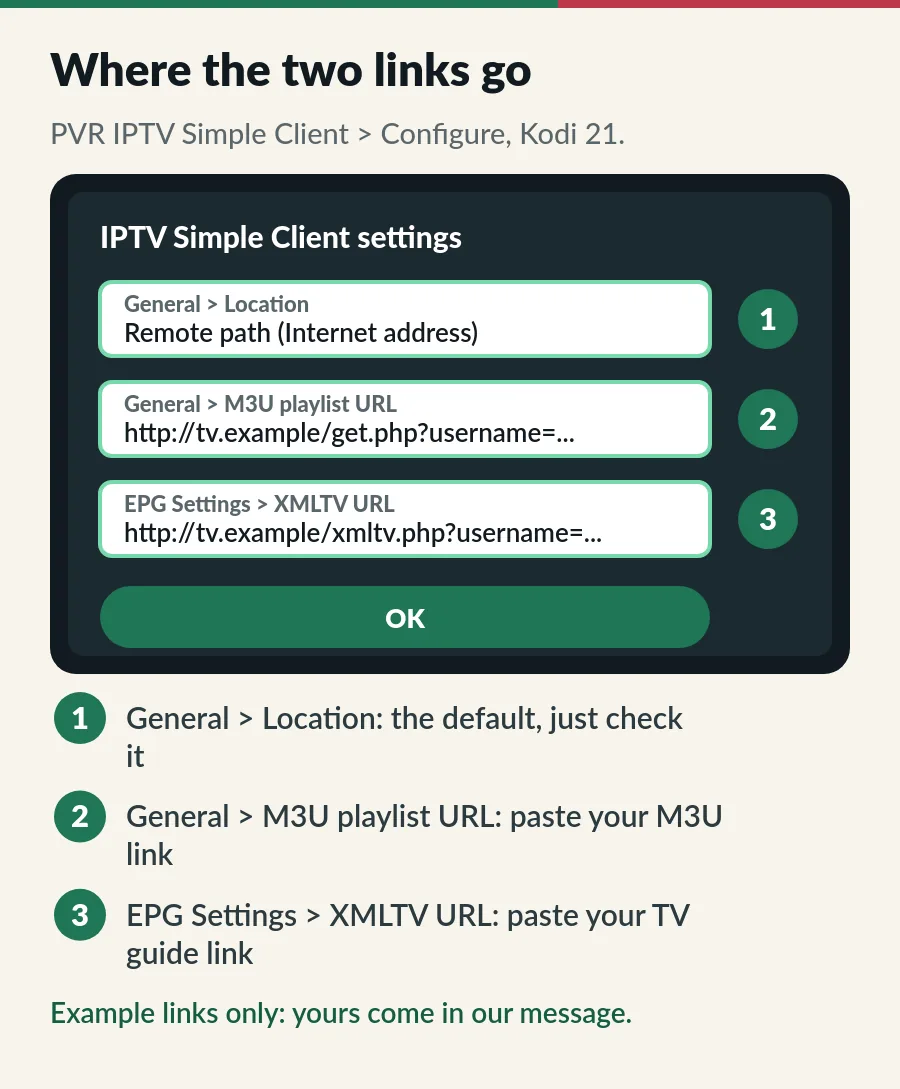
Only a handful of the add-on’s many settings matter for a normal plan:
| Setting | Where | What to choose |
|---|---|---|
| Location | General | Remote path (Internet address). It is already set this way. |
| M3U playlist URL | General | Your M3U link |
| Auto refresh mode | General | Once per day, so new channels appear without you doing anything. Refresh hour (24h) sets the time; 4 means 4 am. |
| XMLTV URL | EPG Settings | Your TV guide link |
| EPG time shift | EPG Settings | 0 hours. Change it only if the guide is off by whole hours on every channel. |
| TV group mode | Groups | All groups, or Some groups for a shorter list (next section) |
The settings window has four levels: Basic, Standard, Advanced and Expert. If you cannot see one of these settings, raise the level in that window.
A full IPTV plan has thousands of channels, and Kodi reads them all, plus the guide, each time it starts. On a small Android TV box that can make Kodi slow to open, so load only the groups you really watch.
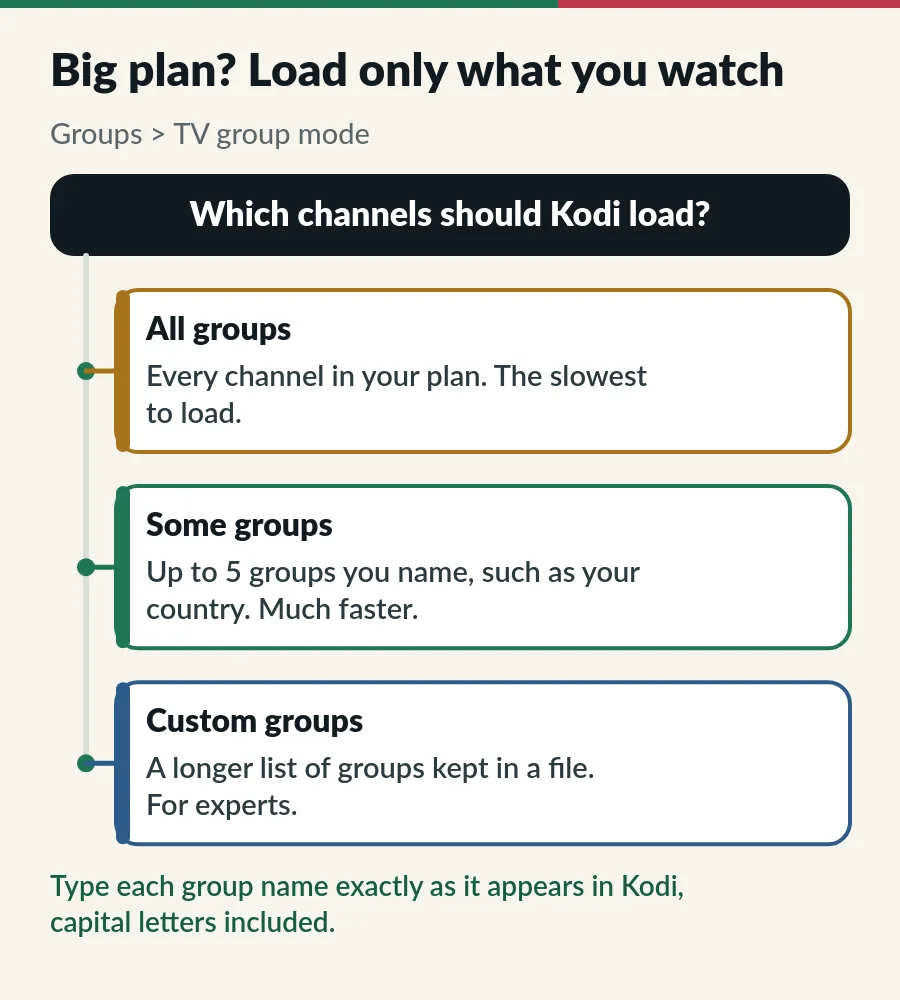
Choose OK and Kodi reloads with the shorter list. Need more than five? Custom groups reads names from a file. Not sure what each group holds? Browse the IPTV Singapore channels list, sorted by country and type.
Everything lives under TV on Kodi’s home screen. Channels shows the list, grouped as in your playlist, and Guide shows the grid. By default, choosing a programme in the guide shows its details first. To jump straight to the channel instead, open Settings > PVR & Live TV > Guide and set Default select action to Switch to channel.
On a keyboard, a few keys make Kodi much quicker while you watch a channel full screen:
| Key | What it does |
|---|---|
| Page Up / Page Down | Next or previous channel |
| C | Opens the channel list over the picture |
| G | Opens the guide |
| Enter | Shows the on-screen controls |
Prefer one app for everything, with films and series menus too? TiviMate on Android TV and Hot Player on Smart TVs give a similar guide with fewer settings.
| What you see | What to try |
|---|---|
| No channels after a few minutes | Copy the M3U link again in full into M3U playlist URL, check that Location says Remote path (Internet address), then restart Kodi. |
| Channels, but the guide is empty | Paste the guide link into XMLTV URL under EPG Settings and give Kodi a few minutes. Still empty? Settings > PVR & Live TV > Guide > Clear data, which reloads the guide. |
| Guide times are wrong | Set the time zone and clock on the device first (Singapore is UTC+8). Change EPG time shift only if every channel is still off by the same number of hours. |
| Kodi is slow to open | Load fewer channels: Groups > TV group mode > Some groups. |
| Old or doubled channels after a change | Settings > PVR & Live TV > General > Clear data. Kodi forgets its stored channels, groups and guide and loads them again from the add-on; your two links stay. |
| Buffering or freezing | Use a cable or a stronger Wi-Fi signal, and close other players using the plan. |
| Every channel fails at once | Your plan may have ended. Renew it and the same links work again. |
Buffering in every player, not only Kodi? Work through our IPTV buffering fix, and the IPTV troubleshooting checks for other errors. Still stuck? Message us on WhatsApp with the device, the Kodi version and a photo of the screen.
The IPTV Simple Client is a free way to watch your IPTV.sg channels in Kodi; the plan brings the channels, the two links and our help on WhatsApp.
Yes. Both Kodi and the PVR IPTV Simple Client add-on are free and open source. The channels come from your IPTV plan.
It takes links rather than the three-box login: an M3U link for the channels and an XMLTV link for the guide. Ask us for both on WhatsApp. Our guide to Xtream Codes explains the difference.
Hot Player is simpler on Fire TV, and we activate it with your plan. Our guide to IPTV on Firestick shows the steps.
Yes, when you install it from Kodi’s own add-on repository, as in the steps above. Avoid Kodi builds and add-on packs from other websites; our guide to the IPTV APK explains the risks.
Guide
Six player apps compared by device, sign-in, TV guide and price.
Guide
What is inside the link, three apps to open it and how to keep it safe.
Guide
The TV guide explained, Singapore time and six quick fixes.
Guide
Play your M3U link in VLC on a computer, phone or TV, find channels fast and fix buffering.
Message us on WhatsApp with your order number, and we send your M3U and TV guide links and help you set up Kodi.